How to set up handover certificates
Scafflinq generates a handover certificate from every inspection and emails it from site. You control what goes on it, whether the customer signs, and who receives it.
Who can do this: Company Admins.
Set what appears on the certificate
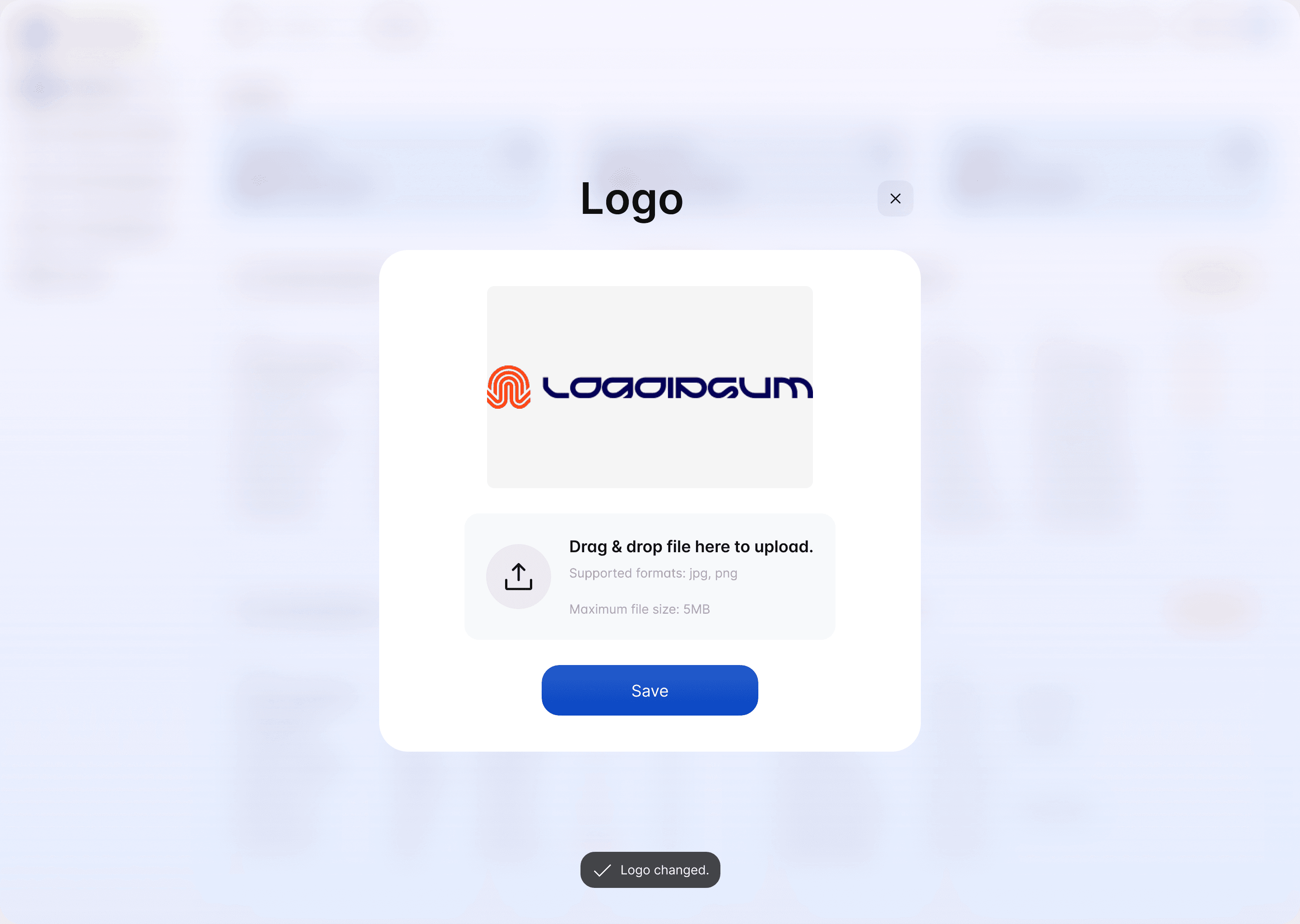
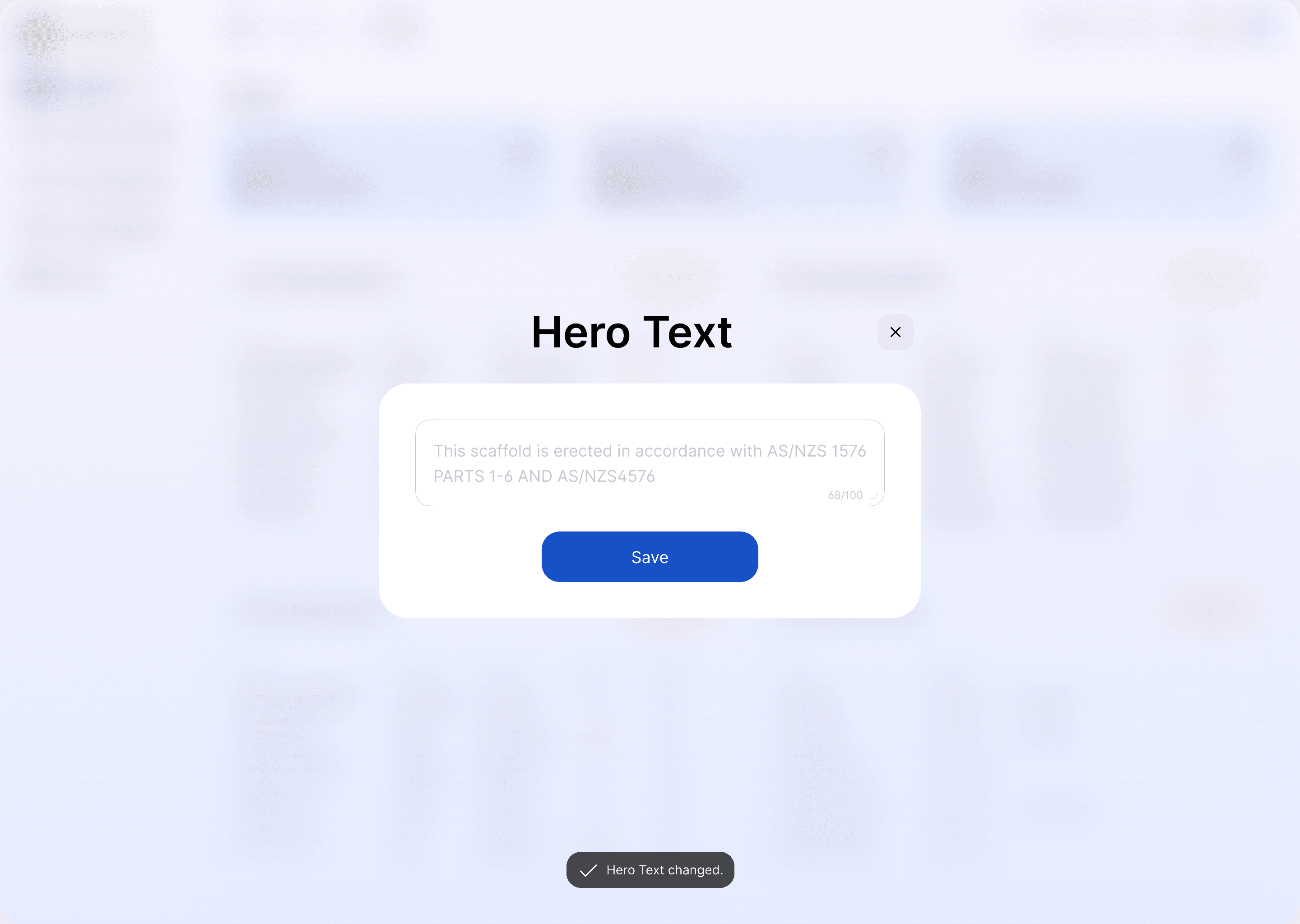
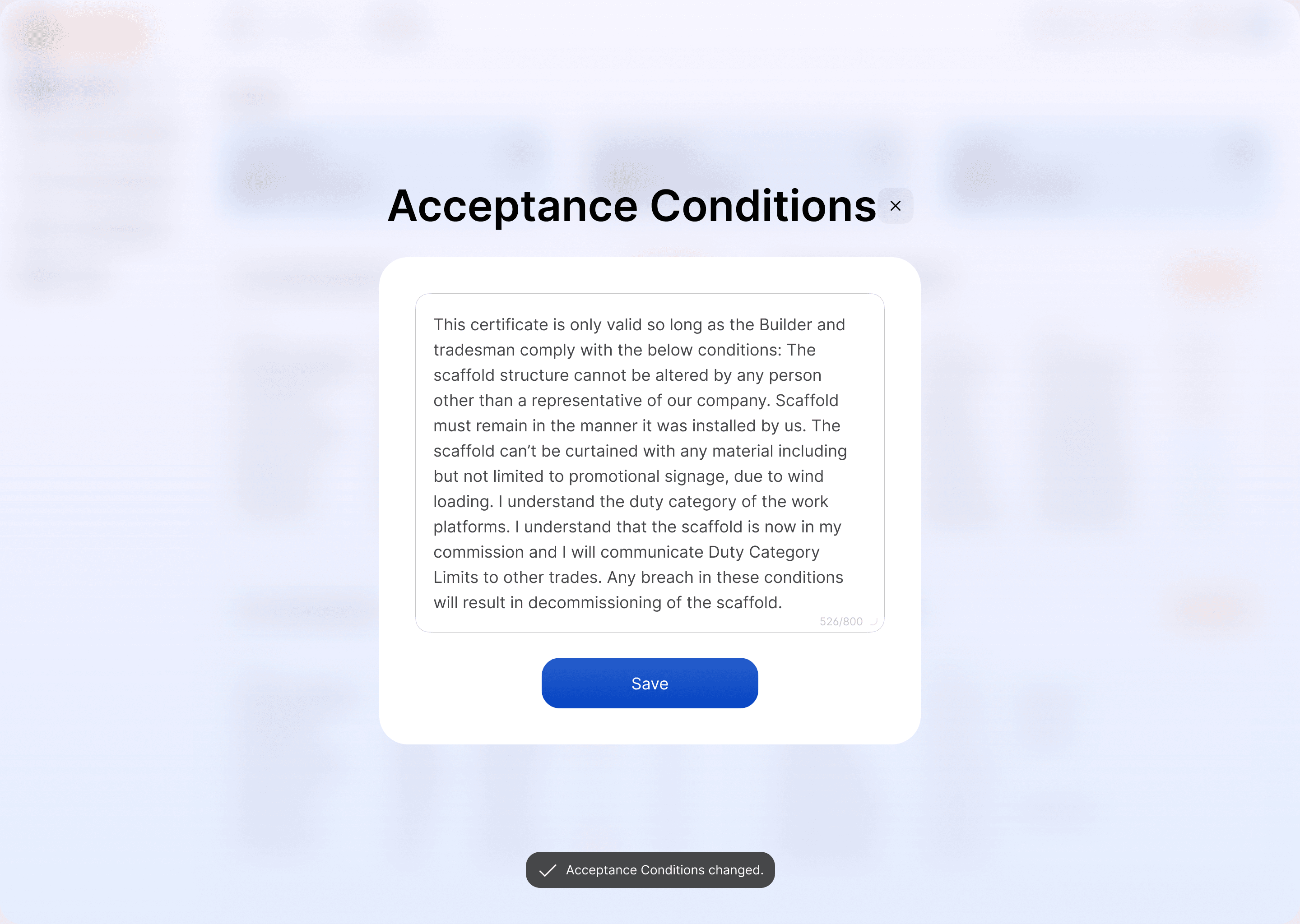
Changes apply to certificates generated after you save. Certificates you've already issued don't change.
Choose whether the customer signs
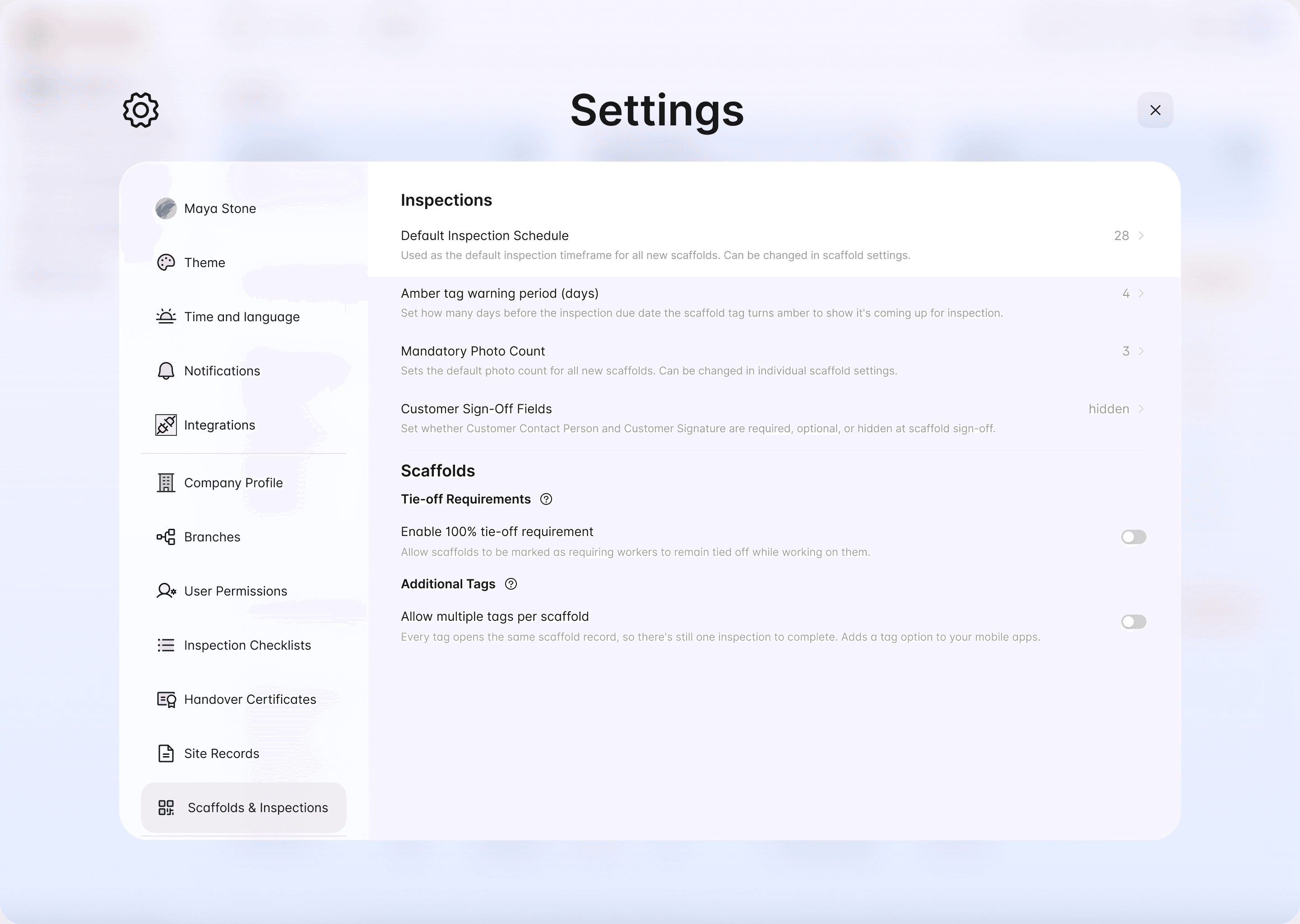
In the web portal, go to Settings > Scaffolds & Inspections and, under Inspections, open Customer Sign-Off Fields. It sets whether the Customer Contact Person and Customer Signature are required, optional or hidden at scaffold sign-off:
- Required: the inspector must capture the customer's details and signature
- Optional: the inspector can capture them, but doesn't have to
- Hidden: the customer section doesn't appear
Choose who receives the certificate
The certificate recipients are set on each project, under Inspections delivery on the project form in the web portal. When an inspector completes an inspection, they can check or change the recipients, choose whether to receive a copy themselves, and choose whether to display the PDF after submitting. See how to inspect a scaffold.
Can a builder see the certificate without an account?
Anyone can scan the scaffold's Scafflinq tag with their phone camera to see its live status and inspection details, with no app or login.
Still got questions?
Pick whichever suits, we’ll get back to you either way.