Day dockets
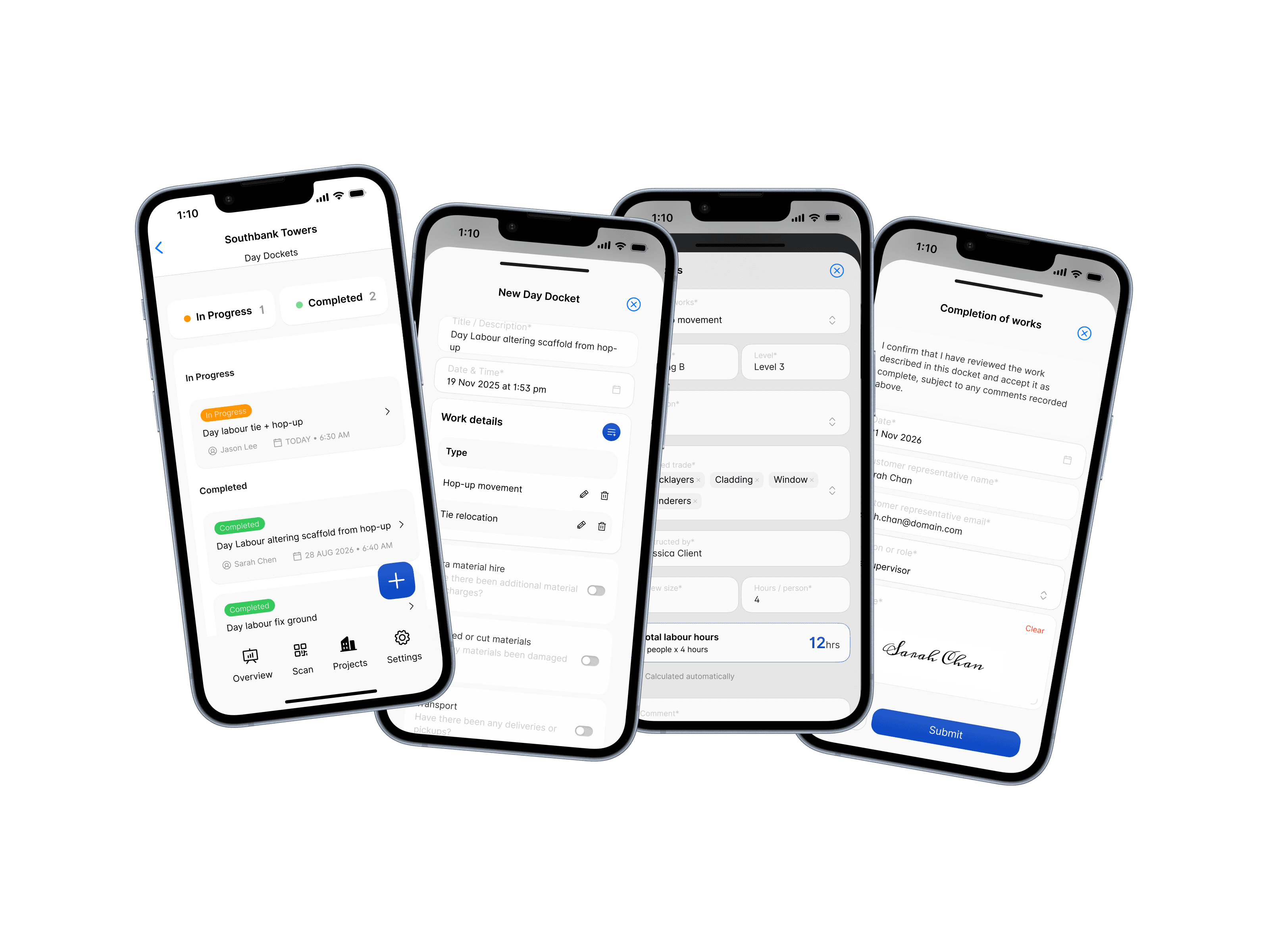
Variation work, recorded on site and signed by the customer on the phone.
When a builder asks for work outside the contract (a hop-up moved, a tie relocated, an extra scaffold erected), the crew records it on a day docket: who asked for it, how many people worked on it, for how long, and what materials it used. The customer signs the docket, and the signed docket is what the invoice for that work rests on.
Until now you couldn't record a day docket in Scafflinq. The inspections, handovers and tags were in one system, and the dockets were on paper or in a separate forms app.
Day dockets are now part of Scafflinq.
Day Dockets
What goes on a docket
Open a project in the mobile app, tap Site Records, and you'll find Day dockets alongside Toolbox Talks and Incident Reports.
A docket starts with a title, the date and time, and whether your company was also doing contract work on site that day. Then you add each piece of work:
- Type of works: picked from your own list, such as hop-up movement or tie relocation
- Building, level and elevation
- Related trade: the trade or trades the work was for, such as bricklayers or cladding
- Instructed by: the person who asked for the work
- Crew size and hours per person: Scafflinq calculates the total labour hours
- A comment and a photo
Three more sections are optional. Switch on the ones that apply to the day:
- Extra material hire: the hire rate per week, the start hire date, and who provided the rate
- Damaged or cut materials: the scaffold item and quantity, with a comment and photo. The item's billing code is filled in from your materials list.
- Transport: the vehicle type and quantity for any deliveries or pickups
If you can't finish a docket in one go, save it as a draft. It stays under In Progress until you submit it.
Signed on site
Before anyone signs, a summary screen totals the labour hours, additional hire per week, damaged items and transport, with room for notes.
Your authorised representative signs the scaffold handover statement. The customer's representative then reviews the docket and signs on the same phone, giving their name, email, and position or role. Their signature confirms the work is complete, that they are authorised to approve the docket, and that additional charges may apply for work outside the agreed scope.
Emailed and filed automatically
Submit the docket, and Scafflinq generates the PDF and emails it to the customer representative's email and to your default recipients under Settings → Site Records.
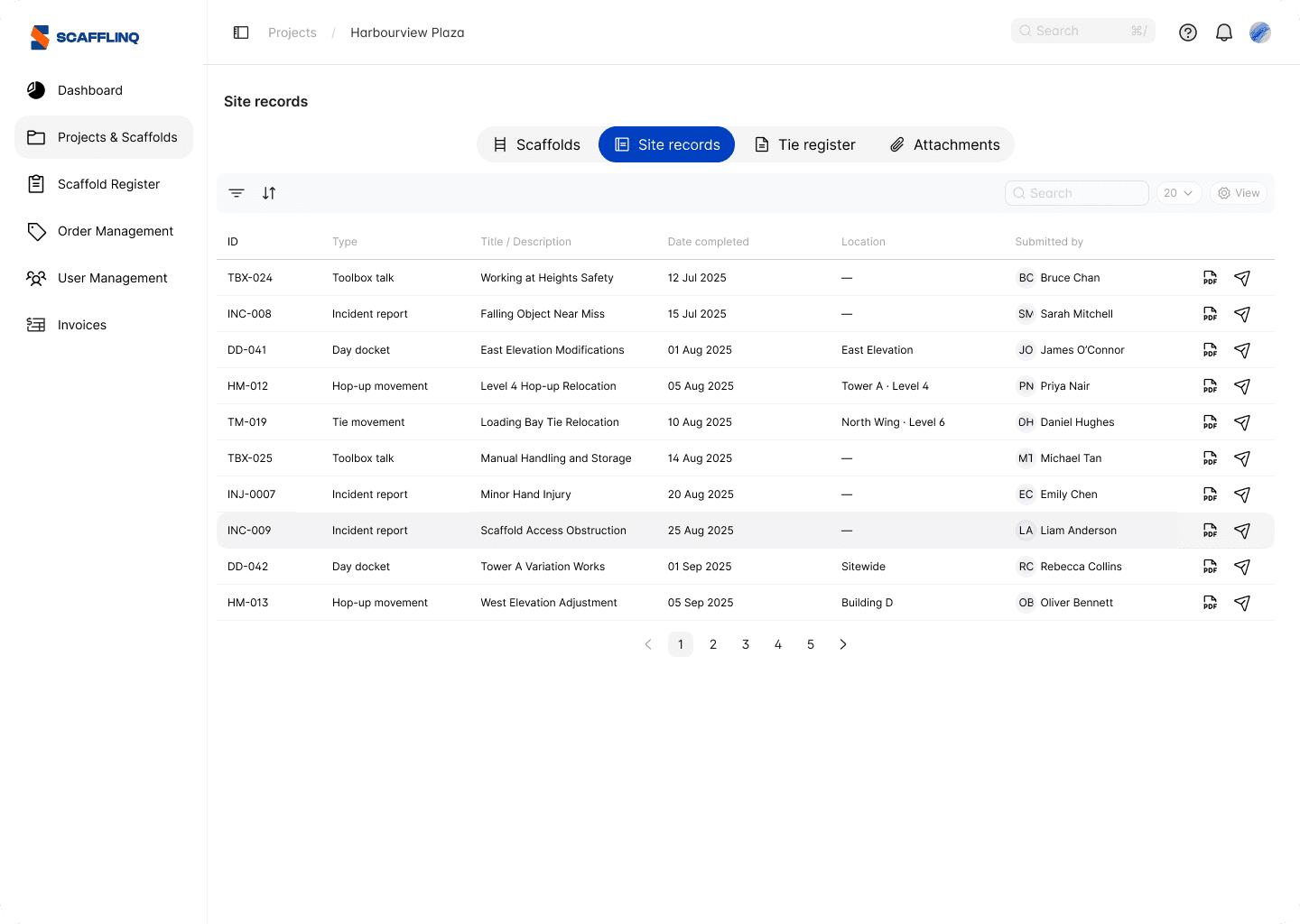
Every docket is also listed in the project's Site records tab in the web portal with its own ID, title, completion date, location and submitter. Open the PDF or resend it from there.
Getting started
Day Dockets is available now for every role. It comes with a starter set of options, so your crews can submit a docket today. To make those options yours, open Settings → Site Records → Day docket defaults in the web portal and edit three lists:
- Work types: the options in the Type of works dropdown
- Damaged or cut materials: grouped by scaffold system, each with a name and billing code
- Transport types: the vehicles you use for deliveries and pickups
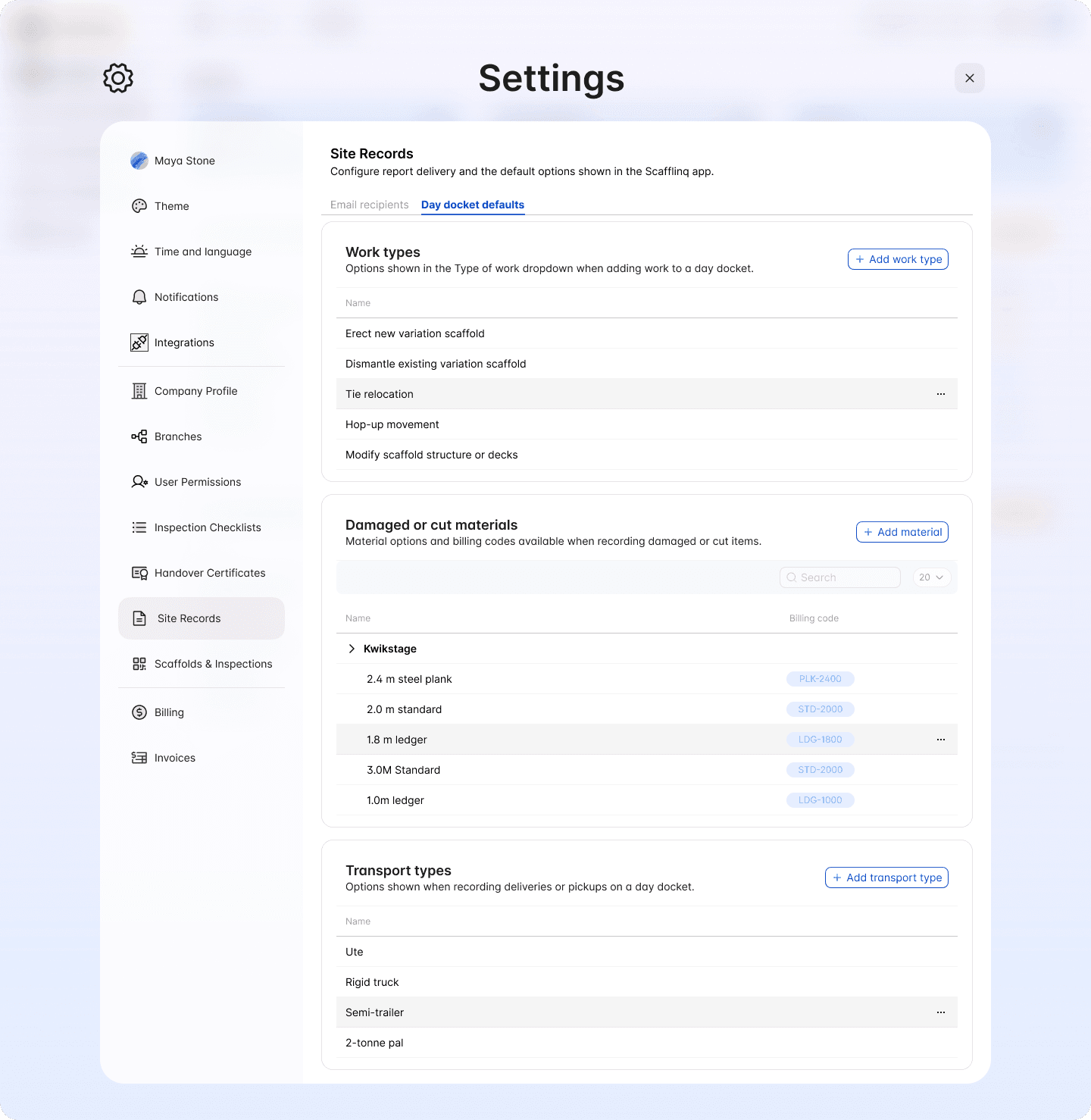
These lists are what your crews choose from in the app, so add, rename or remove options until they match the way your business quotes and invoices variation work.
Then open the app, open the project, tap Site Records, and start a day docket.

Put Scafflinq to work on site
Start free with 5 digital scafftags, or book a demo to see the full platform.