Incident reports
When something goes wrong on site, the report shouldn't be the second thing that goes wrong.
An incident happens, and someone has to stop what they're doing and write it up properly: what happened, who was involved, what the hazard was, whether first aid was needed. On paper, that report is only as complete as whoever fills it in remembers to make it, and only as useful as it is after someone photographs it, emails it around and files it somewhere everyone can find again.
By the time it reaches the people who need to see it, the detail that mattered in the first ten minutes (the exact body part, whether work actually stopped, what the witness saw) has usually been smoothed over or forgotten.
Scafflinq now handles this natively.
Incident reports
Introducing Incident Reports: a guided report for exactly what happened, filed the moment it's finished.
Open a project, tap into Site Records, and you'll find Incident reports alongside Toolbox Talks. Choose whether you're reporting an Incident or an Injury, and Scafflinq asks the right questions for that type, nothing more.
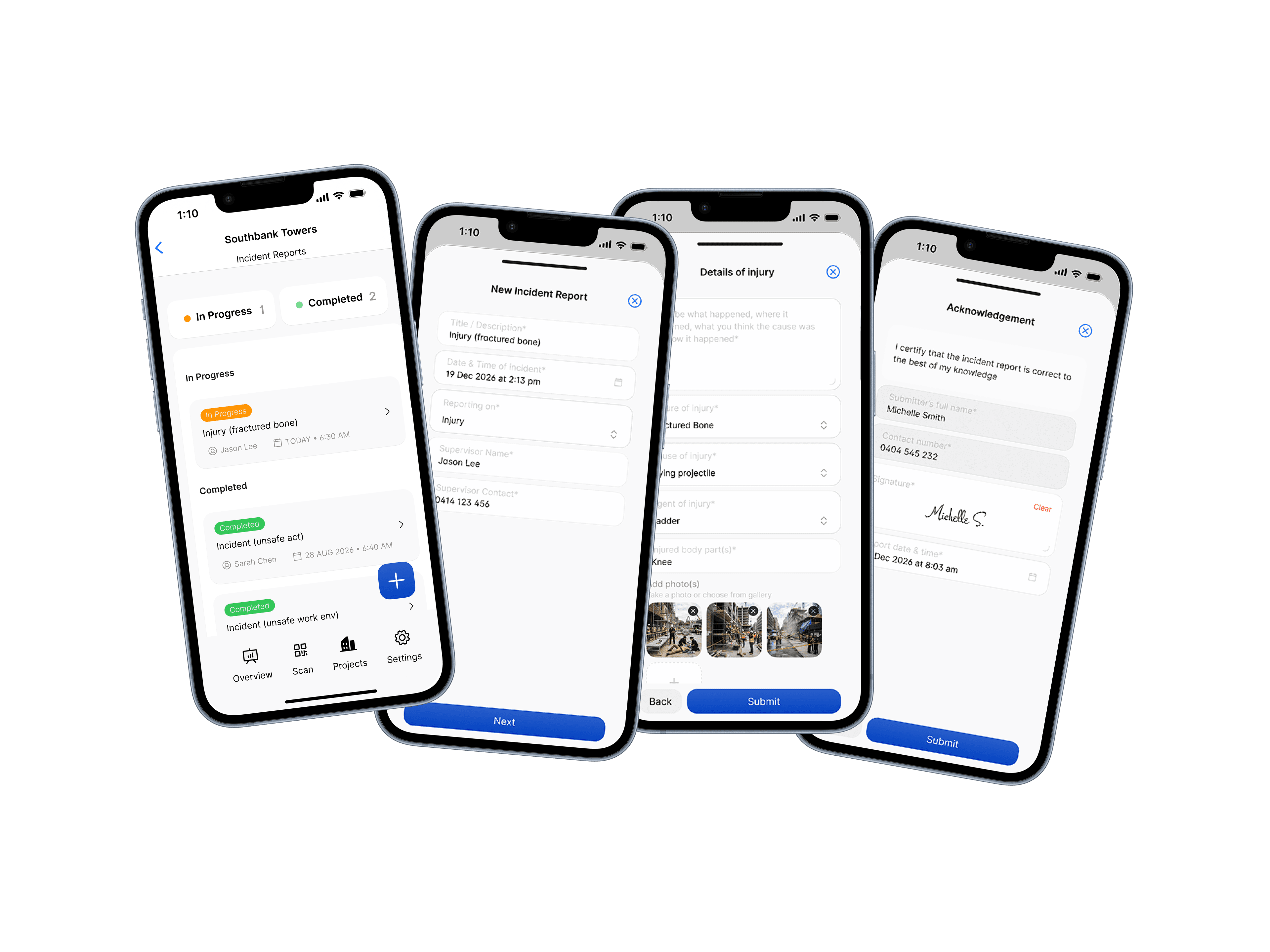
Reporting an incident (a near miss, an unsafe act or condition, anything that didn't result in injury):
- Concern type: unsafe act, unsafe condition of area, unsafe condition of equipment, unsafe use of equipment, or other
- A description of the concern
- What happened, including the potential hazard or risk
- A safety suggestion to eliminate the hazard or control the risk
Reporting an injury:
- The injured worker's details: employment status (direct employee or subcontractor), name, address, date of birth, role, contact number and start time on the day
- At least one witness, name and contact
- What happened, the nature, cause and agent of the injury, and the body part(s) affected, with up to 10 photos
- Treatment: whether first aid was provided (and by whom, with what treatment), whether the person stopped work for the day, and whether they were hospitalised
Every report ends the same way: the submitter signs it and certifies it's correct, with the project's supervisor name and contact already filled in and locked, the same way they are on a Toolbox Talk, so no one has to go find out who that is.
Filed and emailed, automatically
Finish the report, and Scafflinq generates the PDF and sends it straight out: to the project's client email already on file, the project supervisor, and anyone you've set as a default recipient for Incident Reports under Settings → Site Records. Nothing new to set up if you've already got client emails and default recipients configured, and no one has to remember to forward it.
Every report also lands in the same Site records and Attachments tabs in the portal as your other site records, so it can be viewed, downloaded or resent from there too.
Getting started
Incident Reports is available now from Site Records in the app. Because the client email and supervisor are already set per project, there's nothing extra required before your first one. If you want more than your supervisor and client in the loop, set your Incident Report recipients under Settings → Site Records.
Because the details that matter most are the first ones people forget to write down.

Put Scafflinq to work on site
Start free with 5 digital scafftags, or book a demo to see the full platform.