How to add Team Members
You can invite team members from either the web app or the mobile app.
When you invite someone, Scafflinq sends them an invitation email to join your company account.
Before you start
- Only Admin users can invite/manage team members (Managers and Inspectors can’t manage users).
- Have the team member’s correct email address ready — this is what they’ll use to log in.
- Decide:
- Role (Inspector / Manager / Admin)
- Which Branches they should have access to (if your account uses branches)
Roles
Admin
- Full access to the company account
- Can manage company resources , users , and billing
- Can access web and mobile apps
Manager
- Oversight role (for supervisors/management)
- No billing access
- No user management (can’t invite/remove users)
- Can access web and mobile apps
Inspector
- Field staff responsible for inspections
- Can't access Web Portal
- Uses the Mobile App for inspections and on-site work
Tip: Keep the number of Admins small, and use Managers for supervisors who need visibility but shouldn’t manage billing/users.
Not sure which role to choose? See User Roles & Permissions.
User fields explained
When adding a user, you’ll be asked to complete the following fields.
| Field | Meaning |
|---|---|
| First name | The user's first name. |
| Last name | The user's last name. |
| Email Address | The email address the user will use to log in and receive email notifications. |
| Contact number | The user’s contact number. |
| Company name (optional) | The user’s company name, if they are a third-party contractor. |
| Role | See User Roles & Permissions. |
| Scaffold ticket/licence no. | The user’s scaffold ticket or licence number. This may appear on handover certificates. |
| Ticket class | The user’s scaffold ticket class. This may also appear on handover certificates. |
| Branch access | The branches the user has access to, if your company uses branches. |
Adding a user on the web
1From the web portal, click on
User Management in the left navigation menu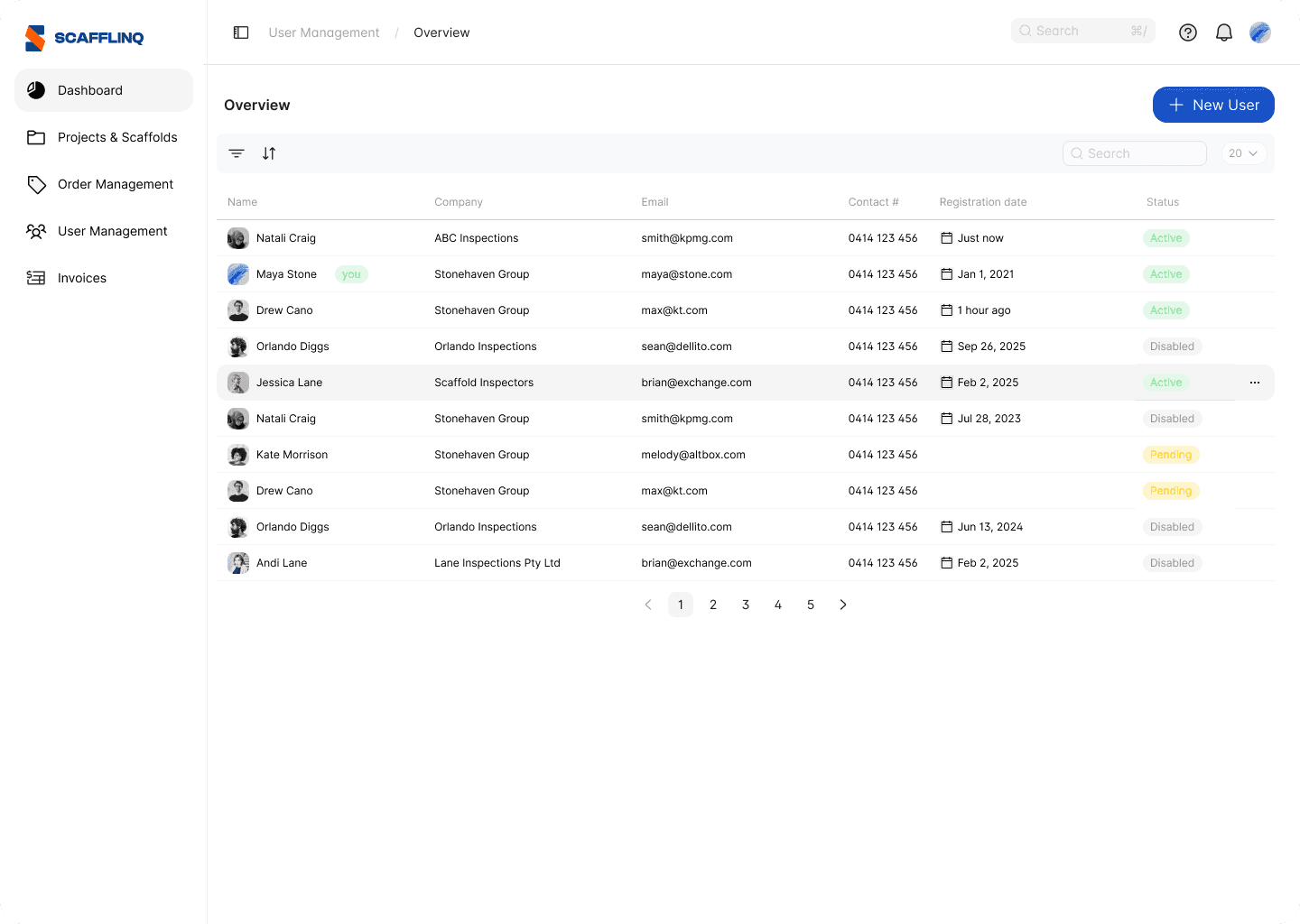
2Click
+ New User button in the top right and fill out the user details.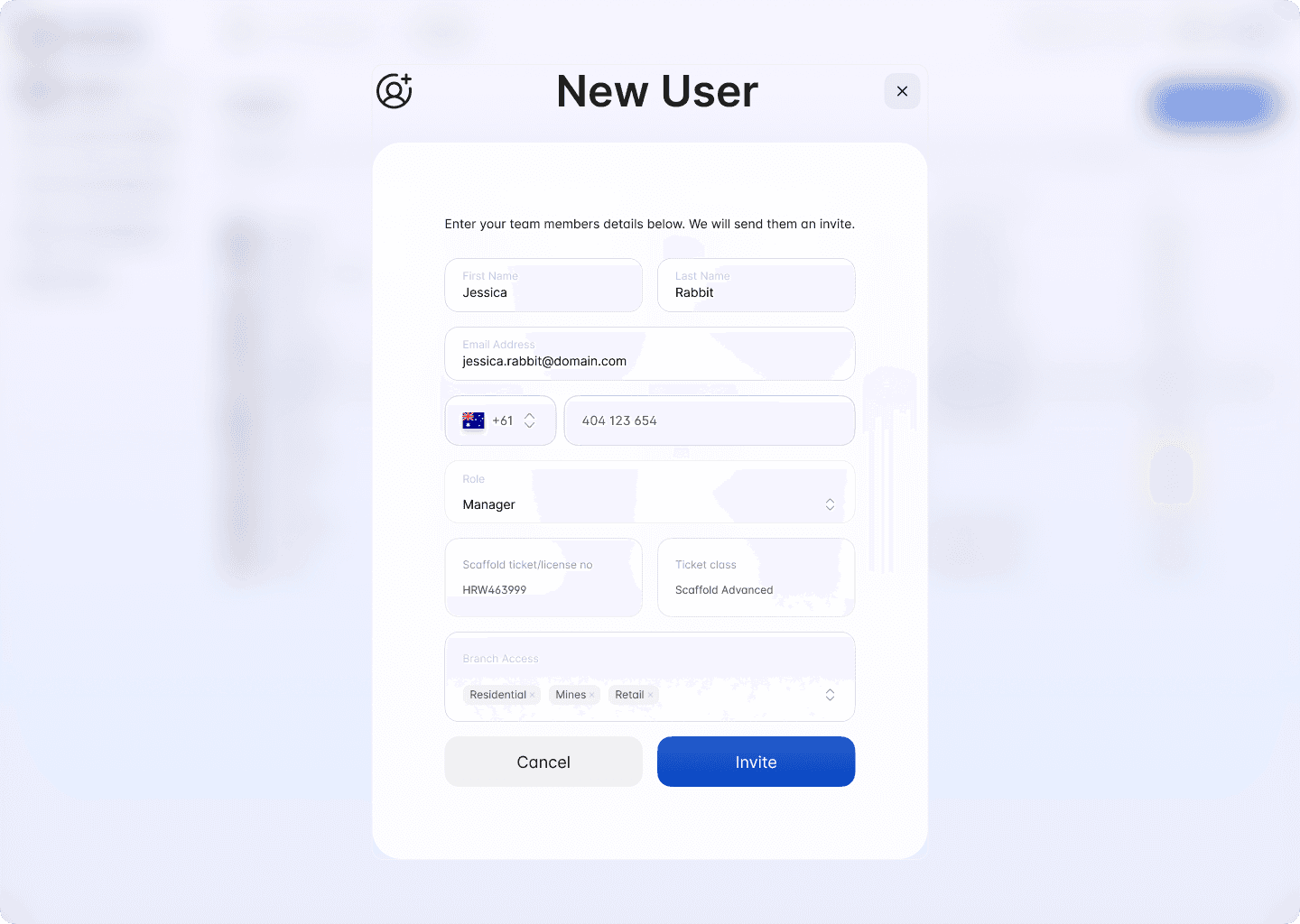
The user will receive an email invitation.
Adding a user on the app
1From the mobile app, go to
Settings from the bottom menu.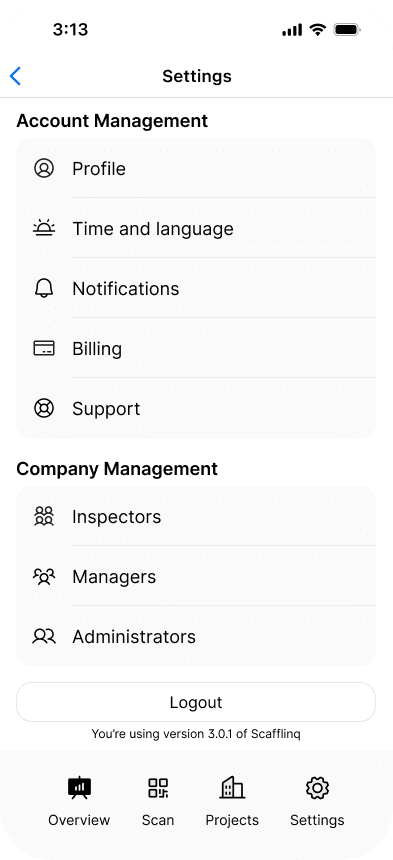
2Under
Company Management, tap on Inspectors, Managers or Administrators depending on the type of user you'd like to invite.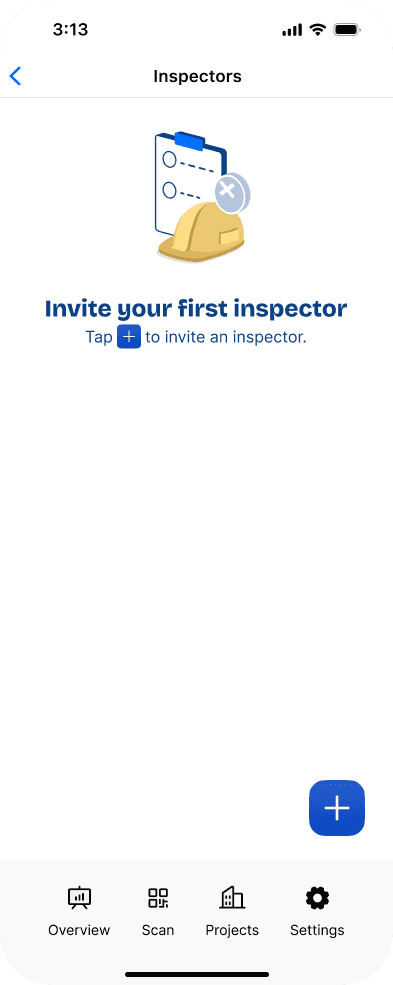
3Tap the
+ button in the bottom right corner and fill out the user details.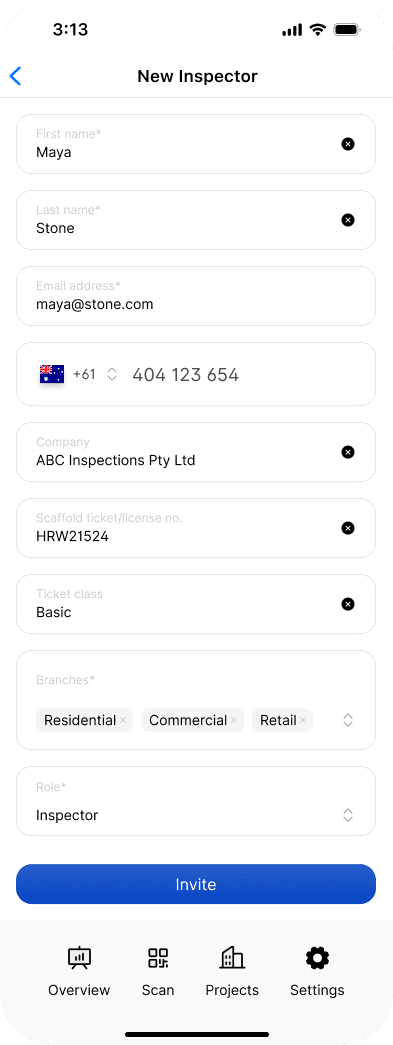
The user will receive an email invitation.
What happens after you invite them?
- The user receives an invitation email
- They follow the prompts to accept the invite and set up access
- They can then log in:
- Admins/Managers: web and mobile
- Inspectors: mobile only
Troubleshooting (if they don’t receive the invite)
- Check Spam / Junk / Promotions
- Confirm the email address is correct
Still got questions?
Pick whichever suits, we’ll get back to you either way.