Tie register
Every tie on the project, recorded by location, type and number.
As the scaffold goes up, the crew installs ties as they go: raker ties in one place, face ties along an elevation, F-ties where the façade allows them. A tie register is the list of those ties: where each one is, what type it is, and its number.
Tie Movements, released last month, records ties that are moved. The Tie Register records the ties themselves.
Tie Register
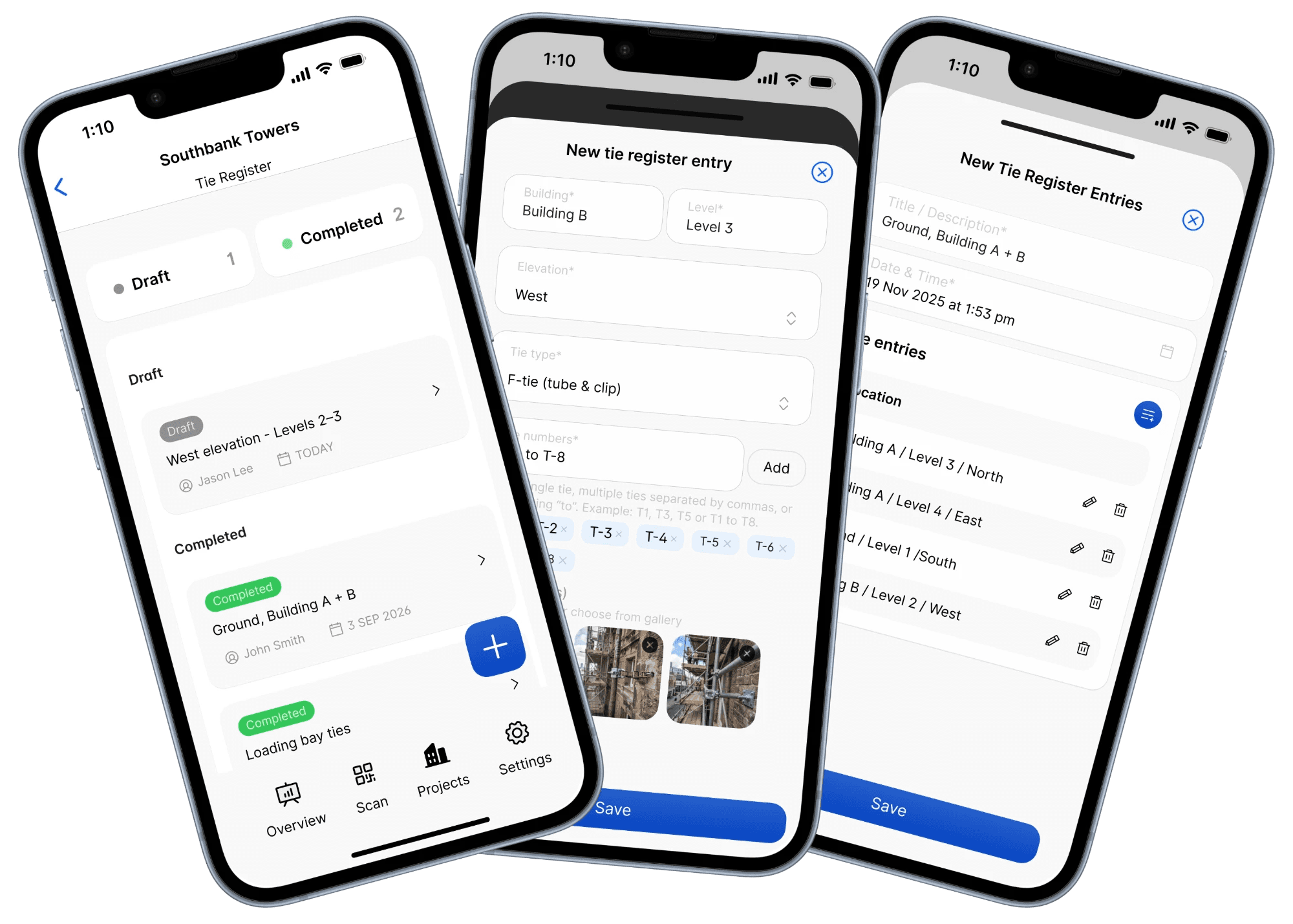
Recording ties on site
Open a project in the mobile app, tap Site Records, and choose Tie Register. Start an entry with a title and the date and time, then add each set of ties:
- Building, level and elevation: north, south, east, west or whole perimeter
- Tie type installed: raker tie, face tie, soffit tie, F-tie (tube & clip) or other
- Tie numbers: a single tie, several separated by commas, or a range using "to". Enter "T-1 to T-8" and Scafflinq lists all eight ties, T-1 to T-8.
- Photos: take them on site or choose them from the gallery
Save the entry when you're done. If you need to leave part-way through, save it as a draft and it stays under Draft until you finish it.
Open a completed entry to see each location with its tie numbers. Tap a location for the building, level, elevation, tie type, tie numbers, who entered it and when, and the photos.
The register in the web portal
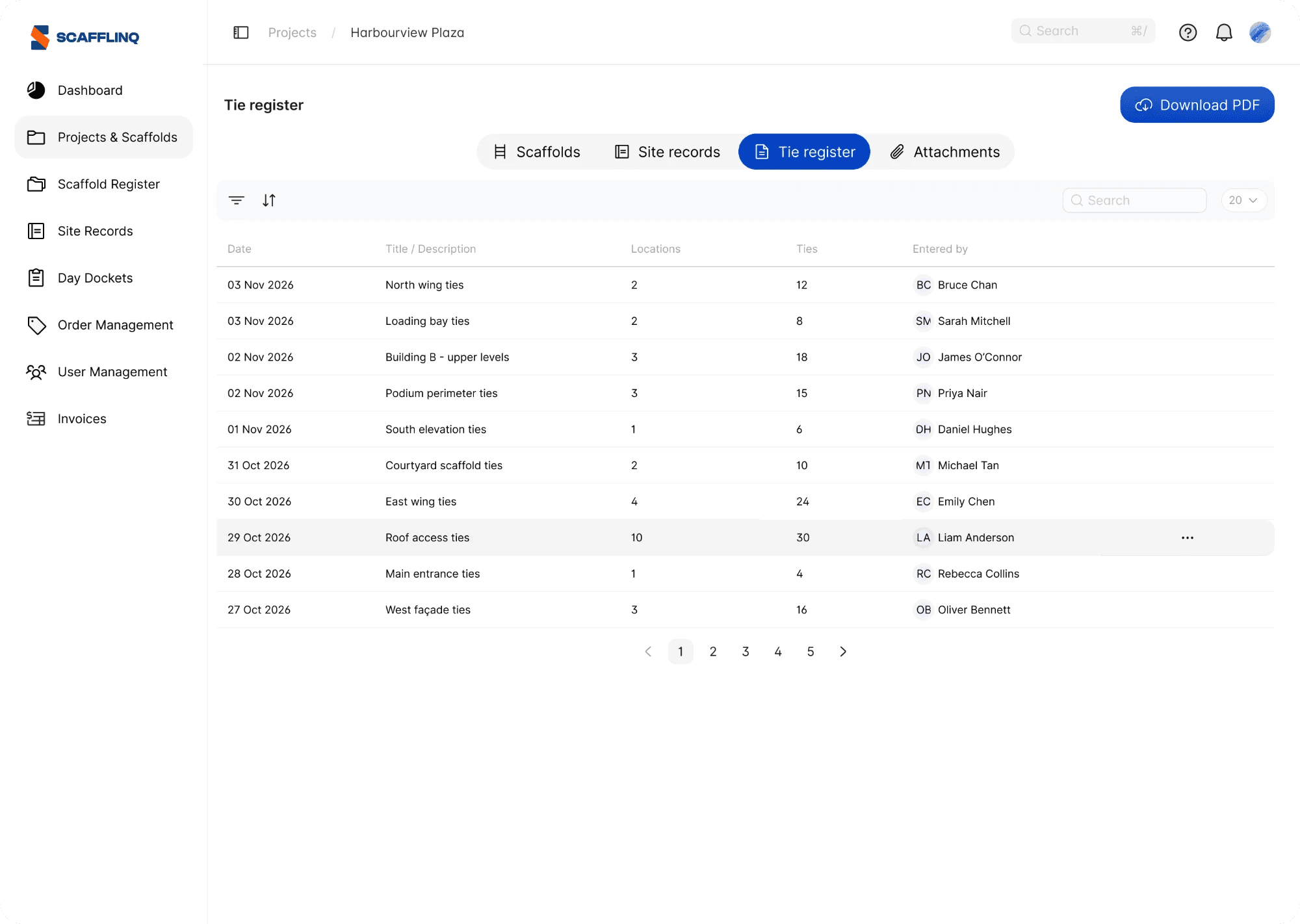
Each project in the web portal has a new Tie register tab, next to Scaffolds, Site records and Attachments. It lists every entry, newest first, with the date, title, number of locations, number of ties and who entered it.
Download PDF, at the top of the tab, downloads the whole project's tie register. Open an entry to see each location's building, level, elevation, tie type and tie numbers, with the photos in a viewer, or preview and download that entry as a PDF on its own.
The tie register PDF
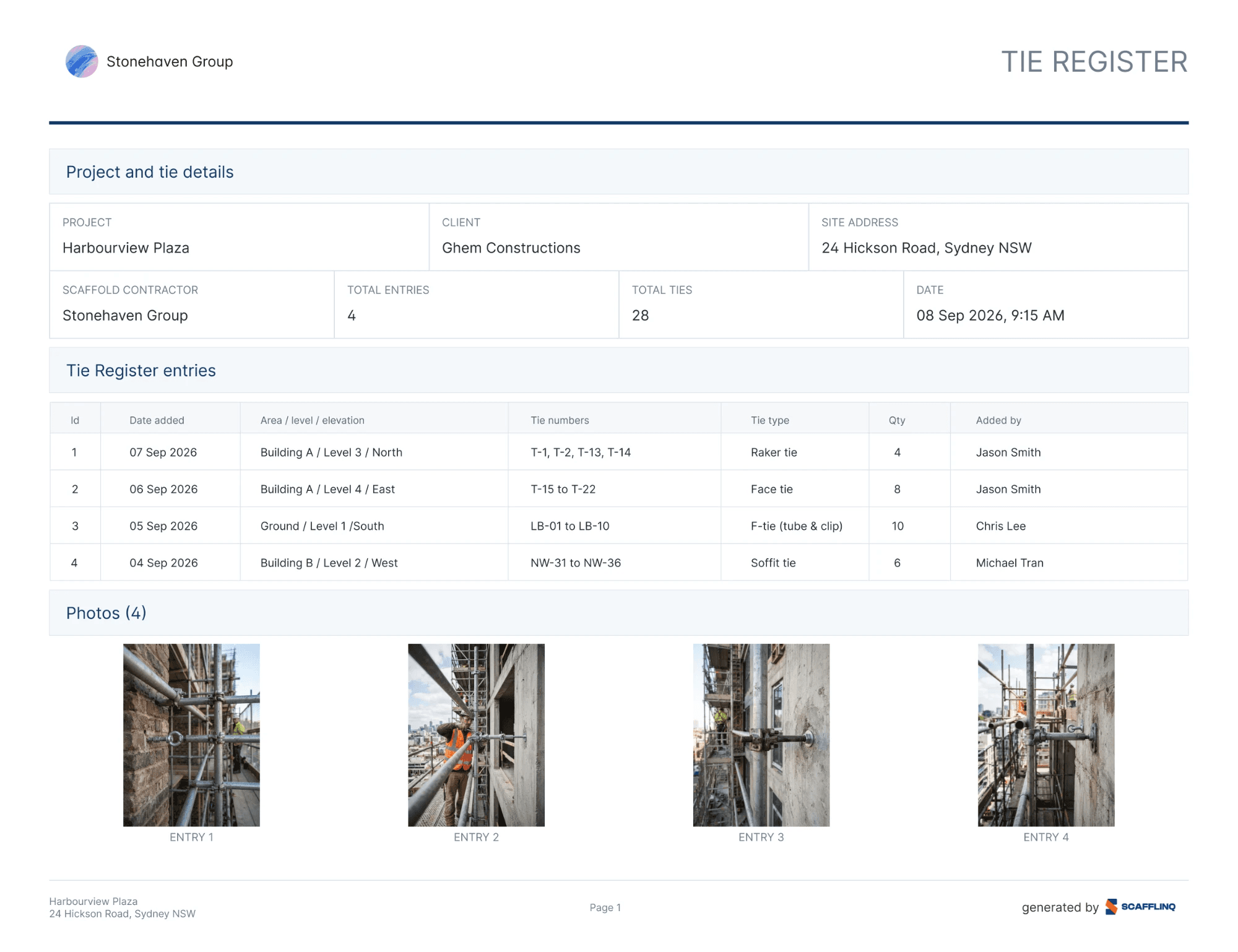
The register PDF is A4 landscape, with your company name at the top. The first page lists the project, client, site address, scaffold contractor, total entries, total ties and date. Then comes a table of entries (date added, area, level and elevation, tie numbers, tie type, quantity and who added it), followed by the photos, labelled by entry. Every page carries the project name, address and page number.
Emailed on every saved entry
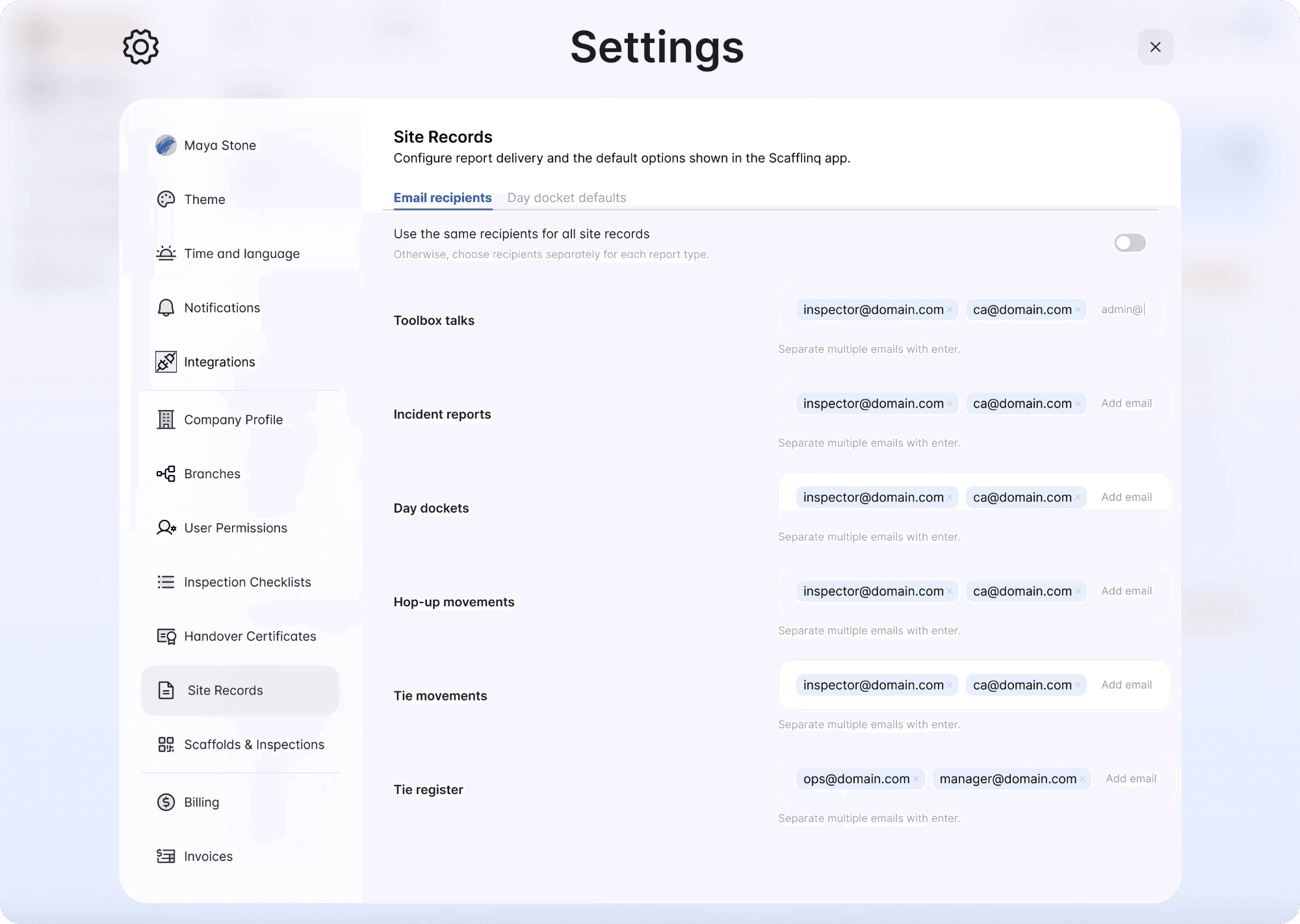
Each time an entry is saved, Scafflinq emails the project's full tie register PDF to your Tie register recipients, so they always have the latest version.
Set those recipients under Settings → Site Records → Email recipients in the web portal. Tie register has its own row there, or switch on "Use the same recipients for all site records" to use one default list.
Getting started
The Tie Register is available now for every role. Before your first entry, check the Tie register recipients under Settings → Site Records.
Then open the app, open the project, tap Site Records, choose Tie Register, and add your first entry.

Put Scafflinq to work on site
Start free with 5 Scafflinq tags, or book a demo to see the full platform.