How to build your inspection checklist
Your inspection checklist is the list of groups and questions inspectors answer on every scaffold inspection. You manage checklists in the web portal. You can keep more than one, but only one is Active, and that's the checklist inspectors use in the mobile app.
See your checklists
In the web portal, go to Settings > Inspection Checklists. Every checklist is listed with who last updated it, when, and its status.
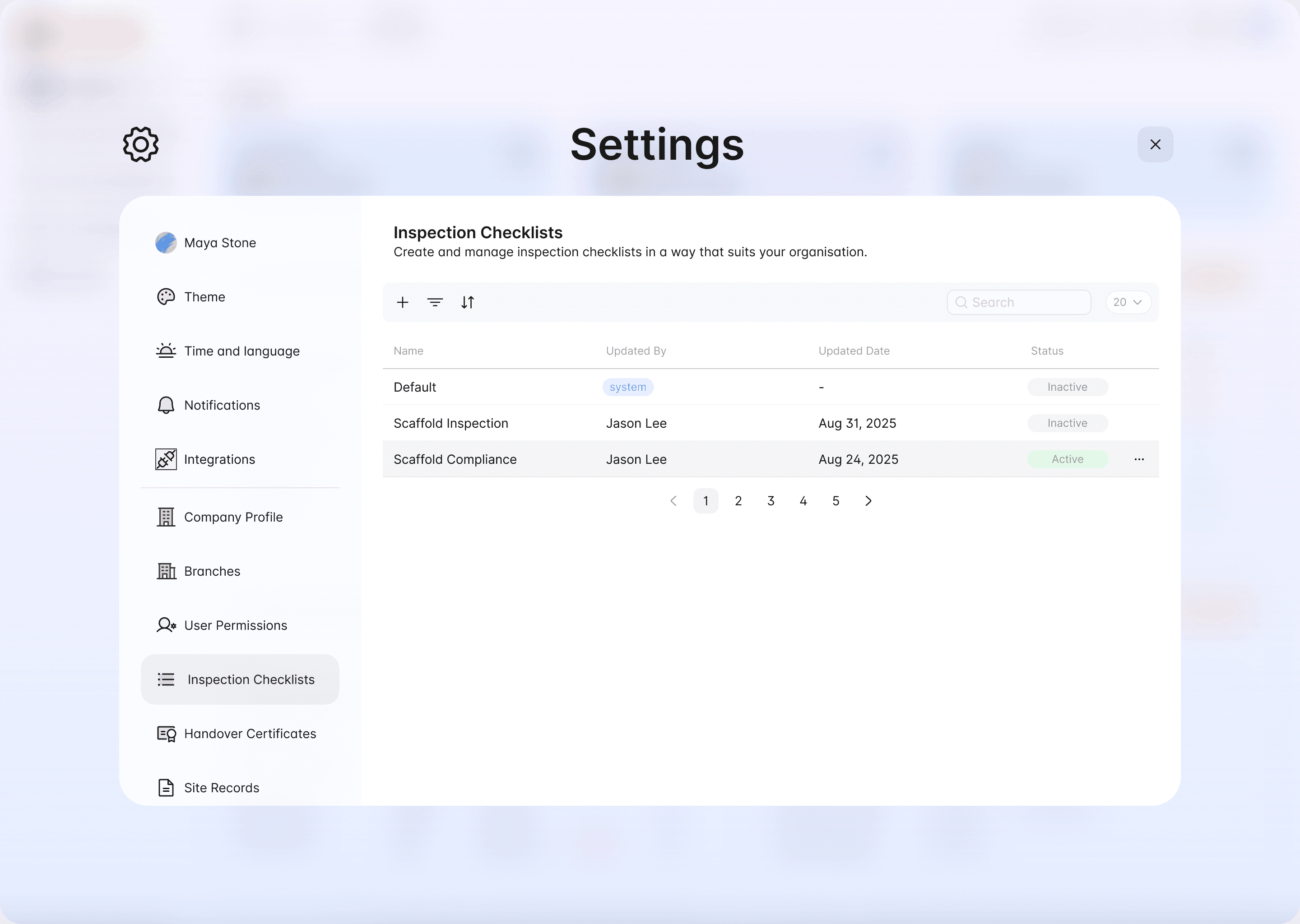
- Default is the checklist Scafflinq provides. You can't edit or delete it, but you can duplicate it as a starting point, or make it active.
- Active is the checklist in use. You can edit or duplicate it, but not delete it.
- Inactive checklists can be made active, edited, duplicated or deleted.
Open the menu next to a checklist to see the options for it.
Create a checklist
+ above the list. To start from an existing checklist instead, open its menu and choose Duplicate.+ Add question to add questions to it. Click + Add Group for each new group.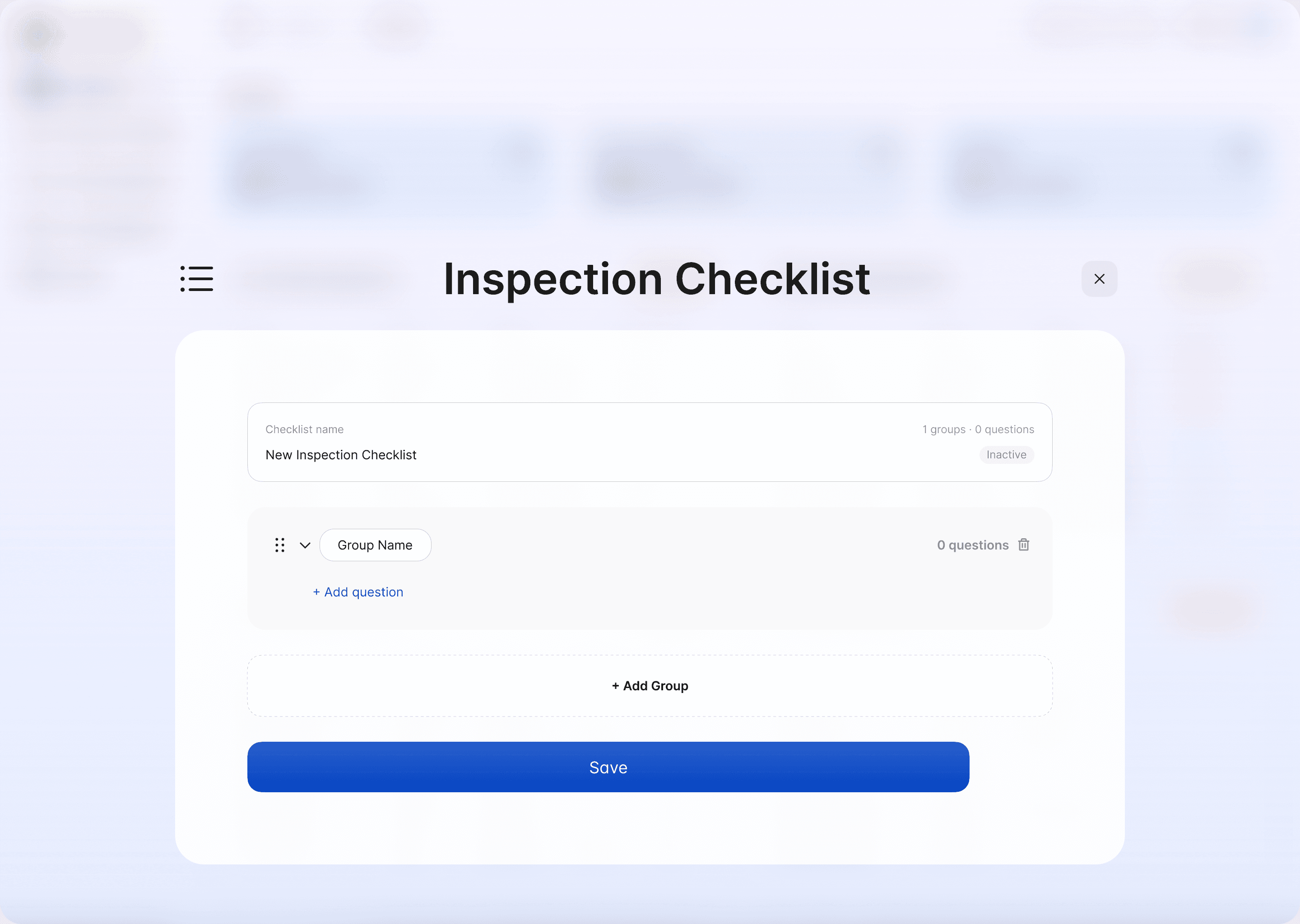
Save. New checklists start as Inactive.Edit groups and questions
Edit.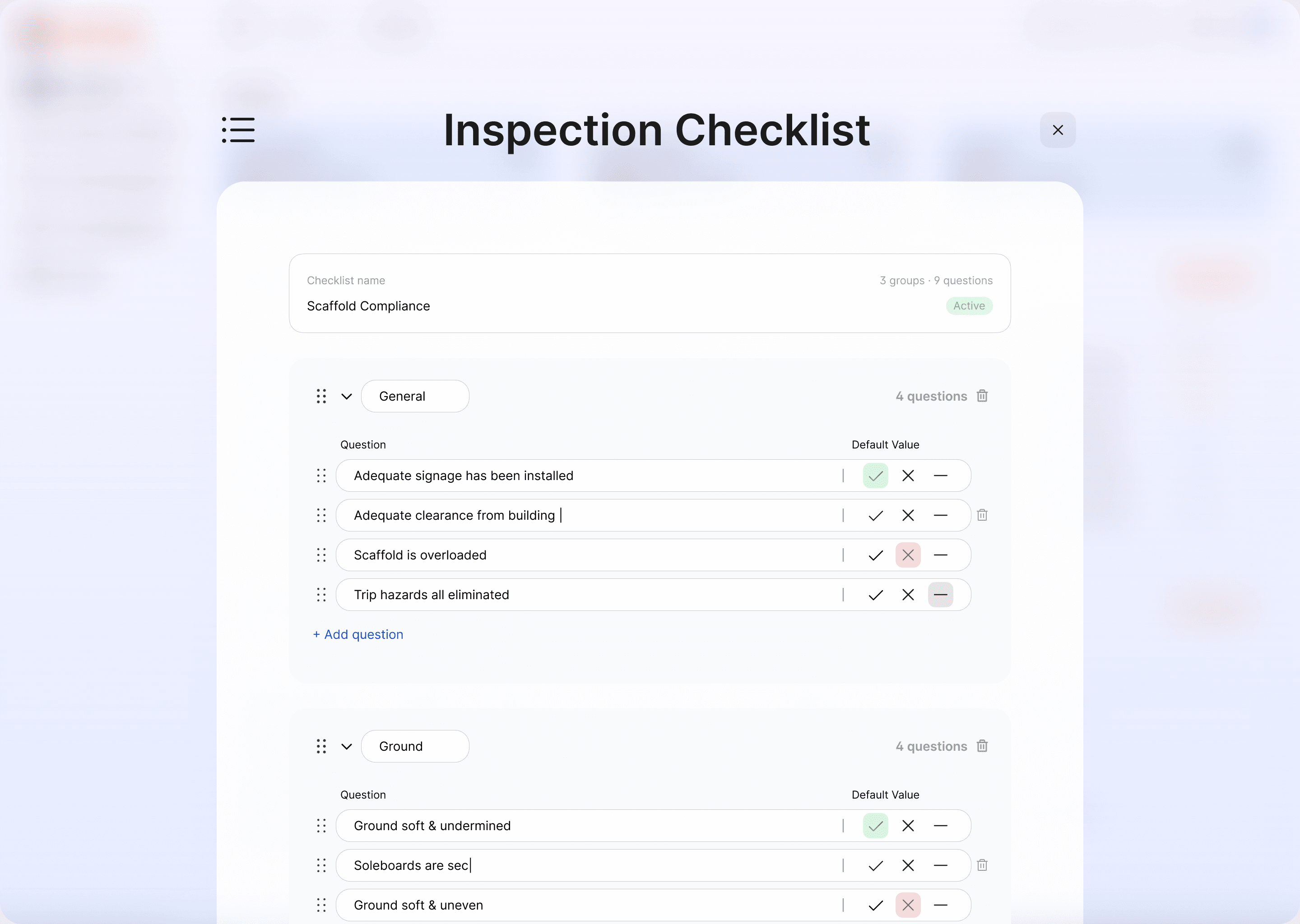
Make a checklist active
Open the checklist's menu and choose Make Active. Inspectors use it from their next inspection.
What happens to past inspections
Changes, including deleted groups and questions and a different active checklist, apply to future inspections only. Every completed inspection keeps the exact checklist it was carried out against, so your records don't change.
Tips
- Match the rules where you work. For example, if you work in the UK you might add questions that capture the Schedule 7 particulars of the Work at Height Regulations, such as anything that could give rise to risk, action taken and further action needed. Check your checklist against the rules yourself, because Scafflinq doesn't certify it.
- Maya uses your checklist. If you use Maya, she only suggests answers to questions already on the active checklist.
- Set photo and schedule rules too. See how to set inspection schedules and mandatory photos.
Still got questions?
Pick whichever suits, we’ll get back to you either way.