How to use Maya on an inspection
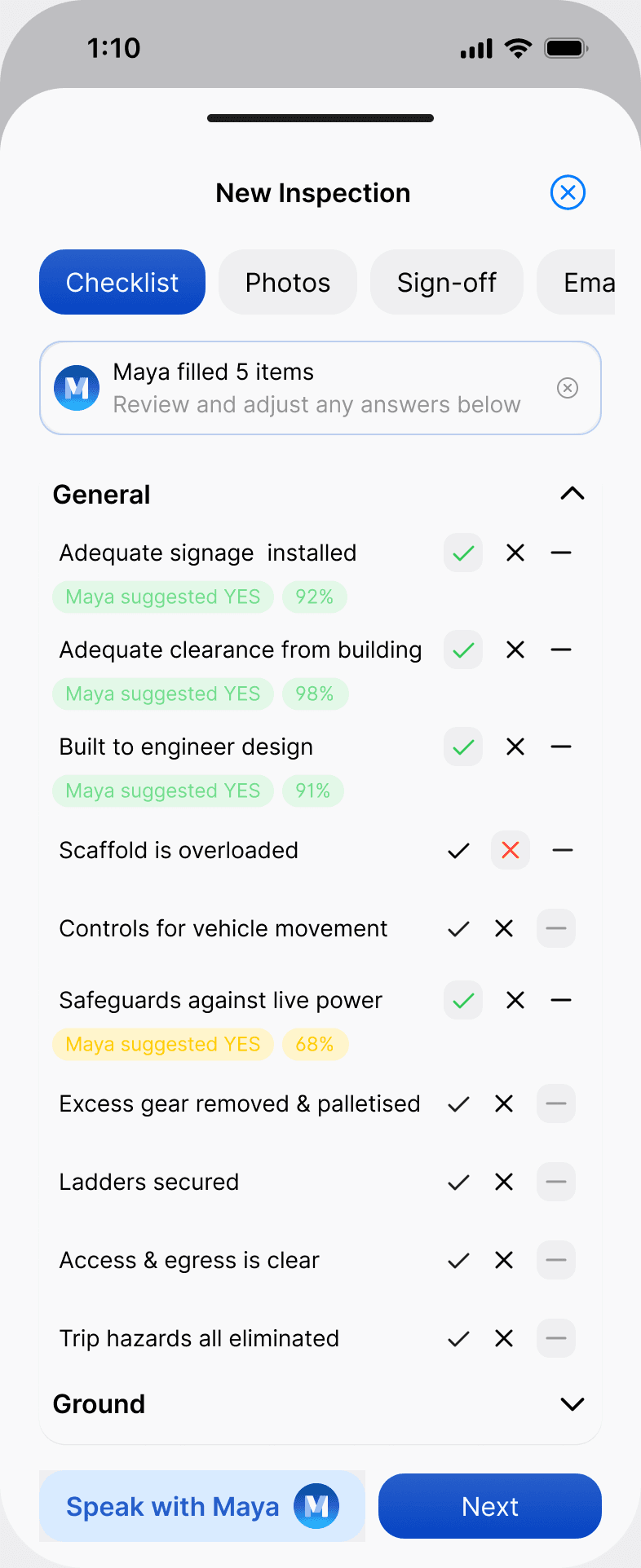
Maya is Scafflinq's AI inspection assistant. She sits inside the inspection checklist in the mobile app. You describe what you've checked, and Maya suggests YES, NO or N/A answers on your checklist for you to review.
Maya is optional and included on every plan. You can still tap through the checklist by hand.
Use Maya during an inspection
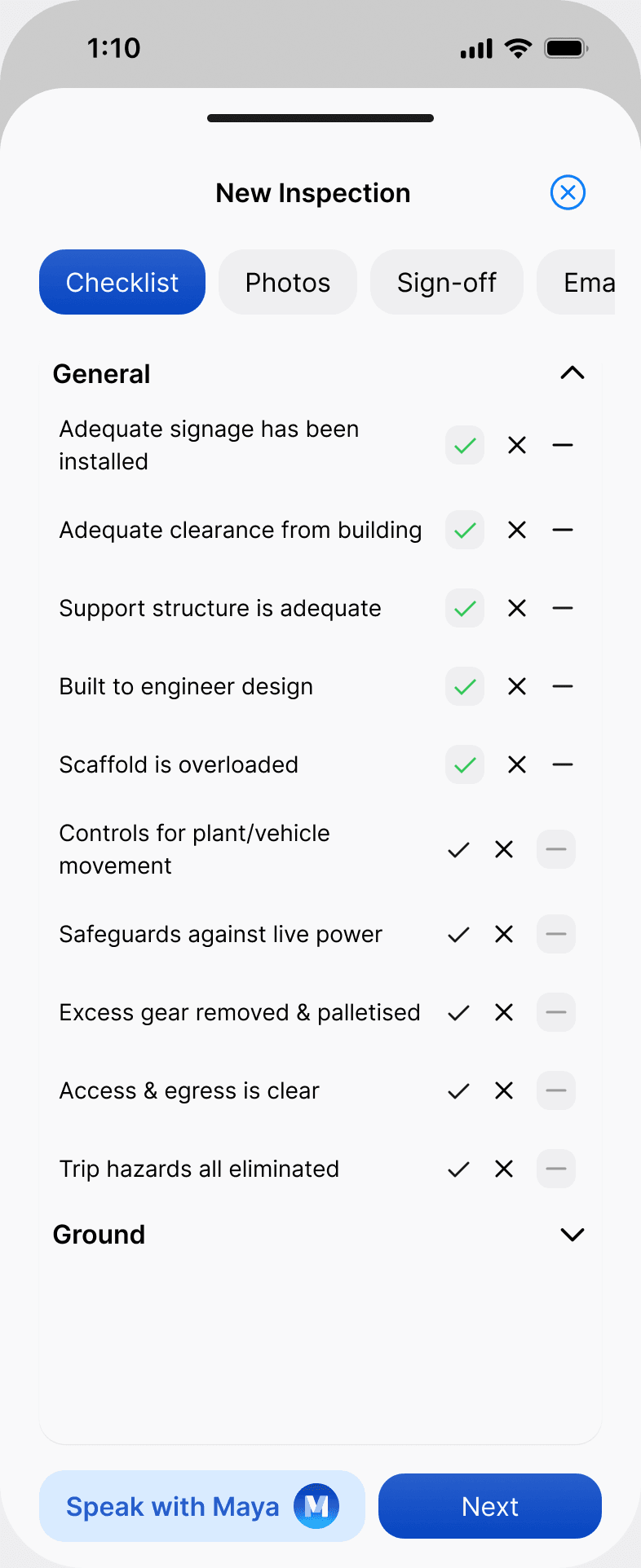
Speak with Maya. The Maya Inspection Assistant drawer opens, with an example and tips for best results.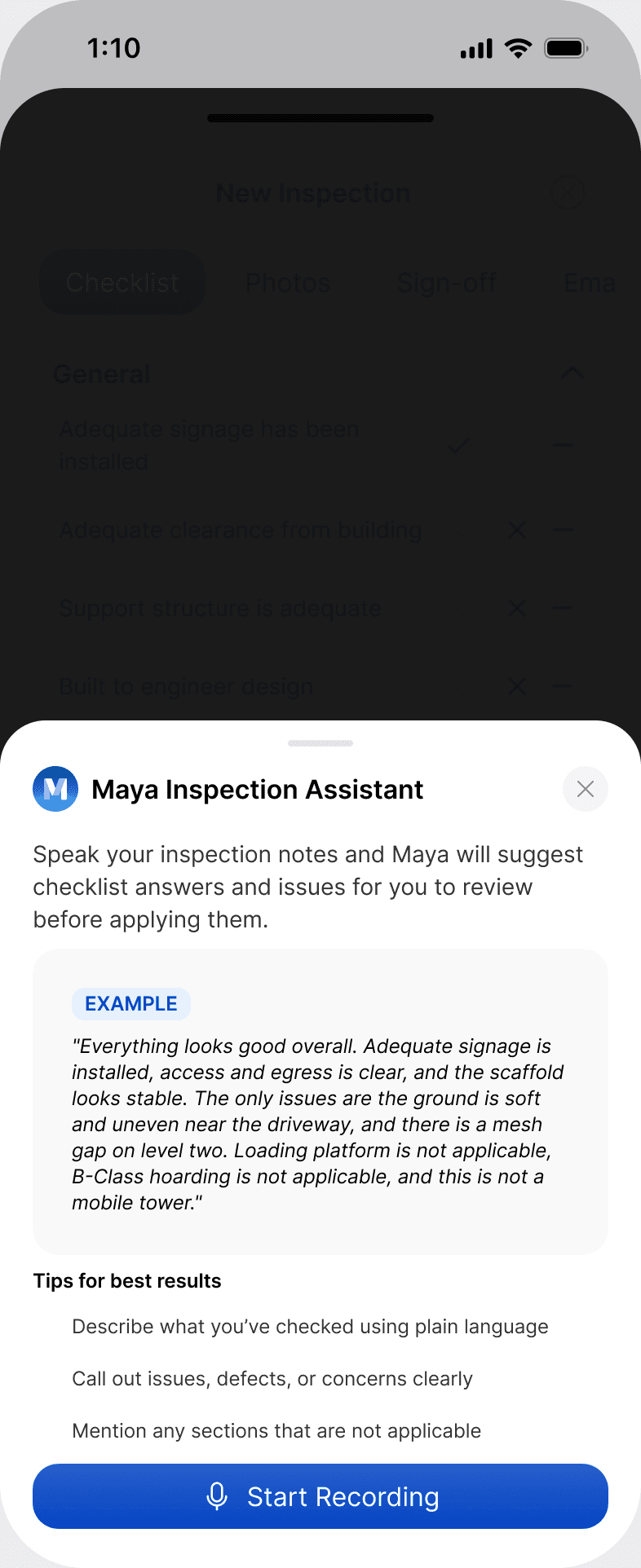
Start Recording and speak your observations. Tap Done when you've finished.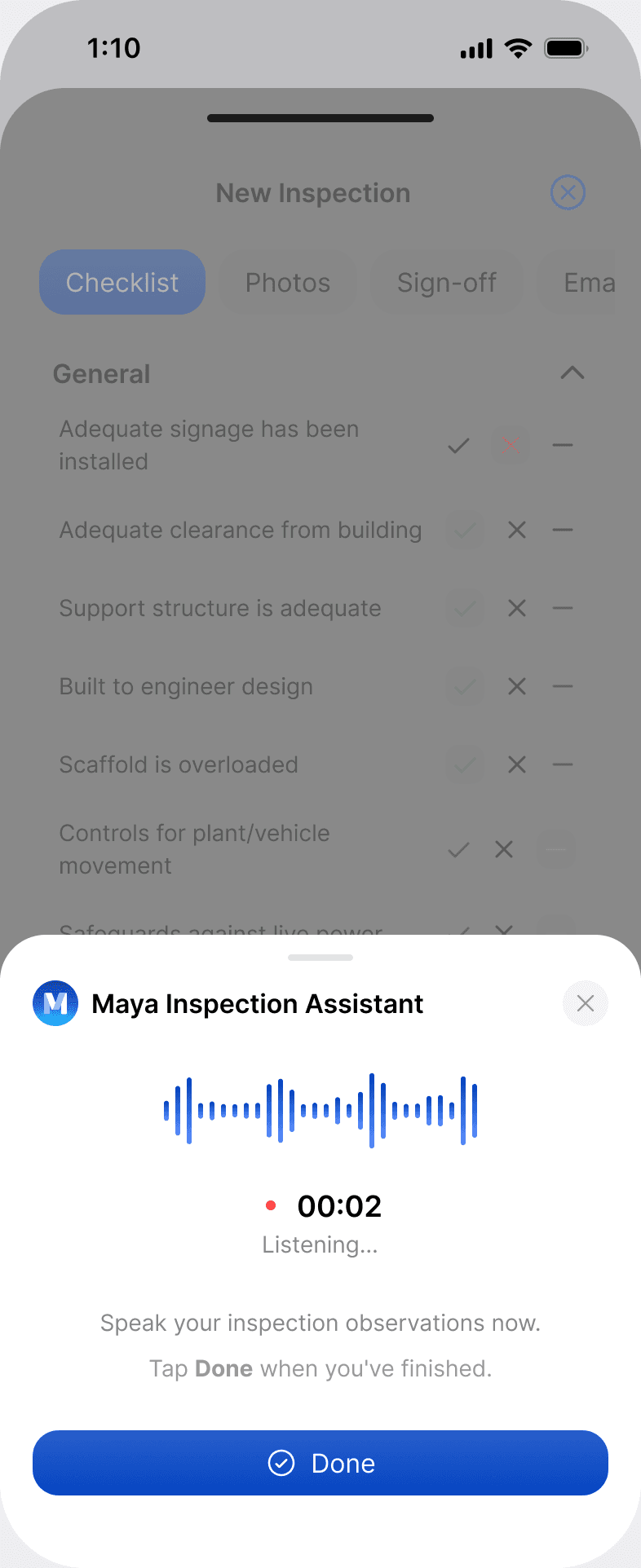
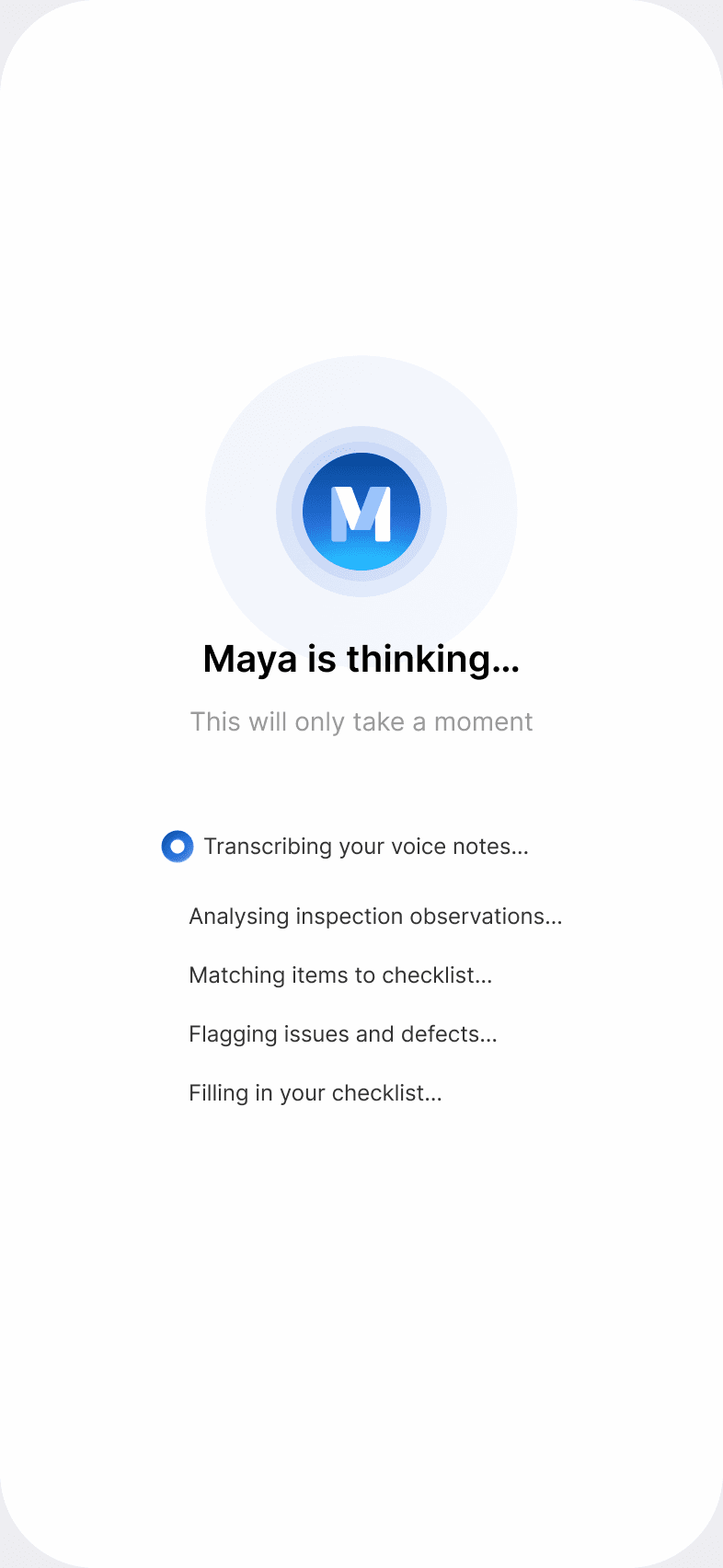
What to say
- Describe what you've checked in plain language
- Call out any issues, defects or concerns clearly
- Mention any sections that are not applicable
For example: "Signage is in place, clearance from the building looks good, and the scaffold is within its rated load capacity. Access paths are clear, but there's a minor trip hazard near the east bay. Loading platform and mobile tower sections are not applicable."
From that, Maya might suggest NO for access paths with the trip hazard flagged, and N/A for loading platforms and mobile towers. You can change any of them, and nothing is submitted until you sign off.
What Maya does and doesn't do
- Maya works from the exact checklist version used for the inspection, including your own groups and questions.
- Her suggestions only map to questions already on that checklist, and she only suggests YES, NO or N/A.
- She can't add questions, inspect the scaffold, decide whether it's safe or sign anything off. The inspector reviews and confirms every answer and signs off.
- The inspection record shows that Maya assisted and that the inspector confirmed the final answers.
To change the questions Maya works from, see how to build your inspection checklist.
Still got questions?
Pick whichever suits, we’ll get back to you either way.