How to run a toolbox talk
A toolbox talk is the short safety briefing held before work starts. It's also called a pre-start meeting in Australia, and a tailgate meeting or safety talk in Canada.
You run toolbox talks in the mobile app. When the talk is finished, Scafflinq emails the signed PDF automatically and keeps it in the project's Site records tab in the web portal.
Before your first toolbox talk
Two minutes in the web portal makes sure the PDF reaches the right people:
- Assign a Supervisor to the project under Project assignment. Their name and email are added to every toolbox talk on that project.
- Set your default recipients under Settings > Site Records.
See how to set site record recipients for both.
Run a toolbox talk in the mobile app
Site Records, then choose Toolbox Talks and tap + to start a new talk.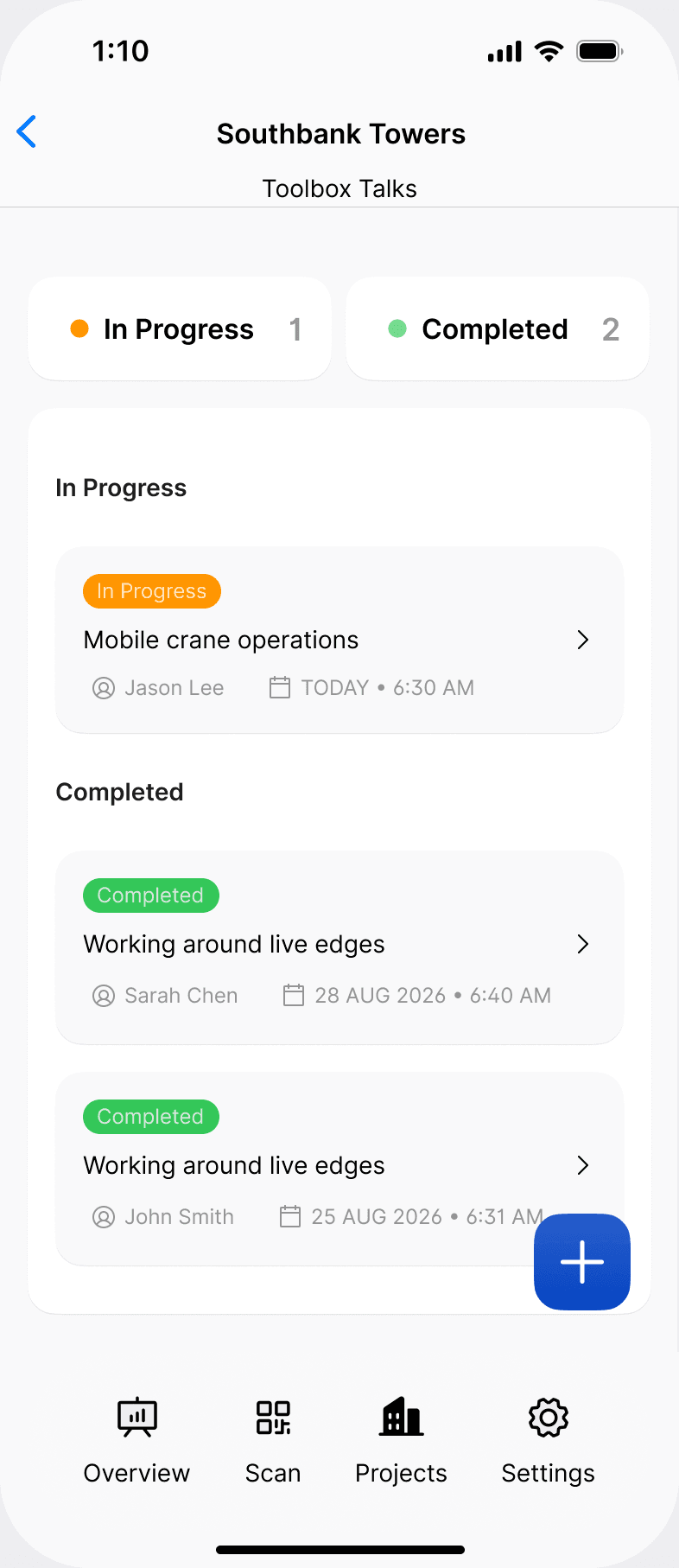
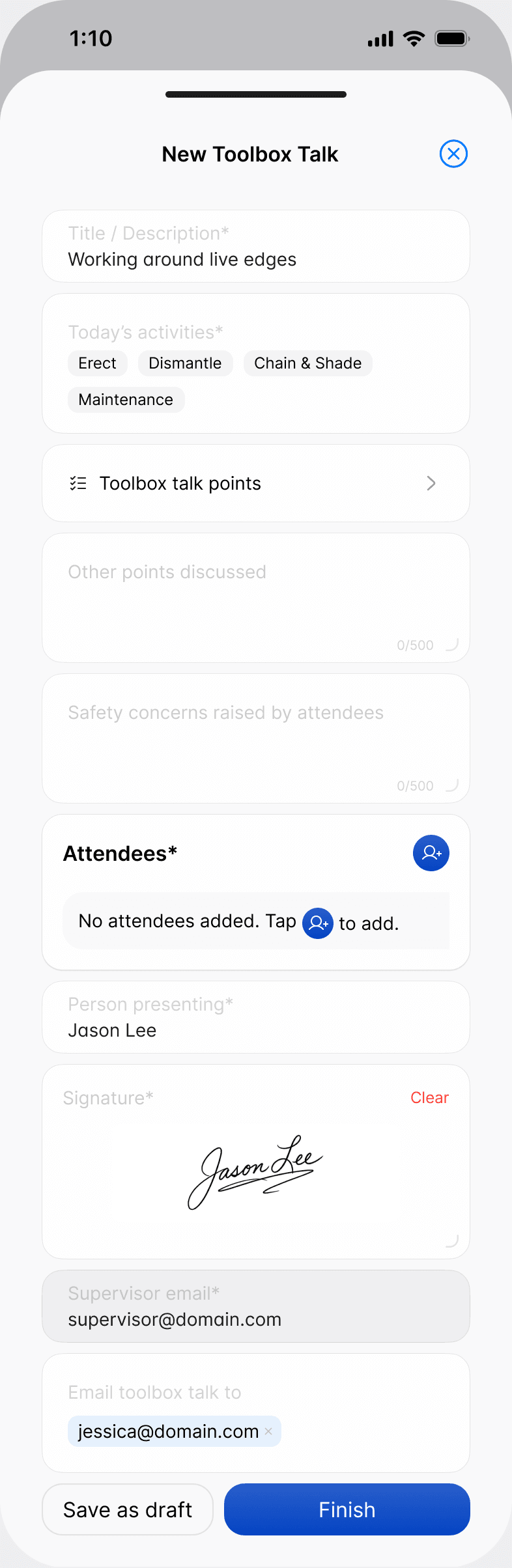
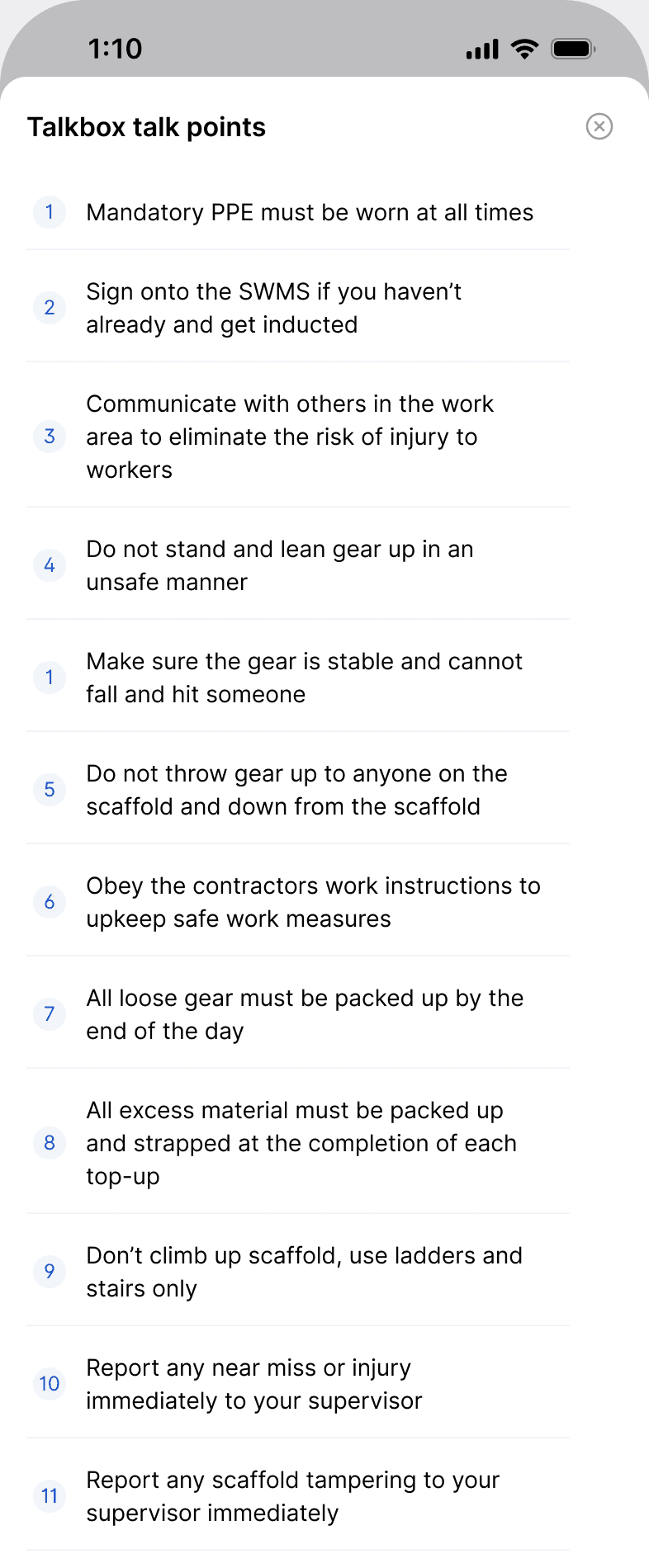
Add attendee. Repeat for everyone at the talk.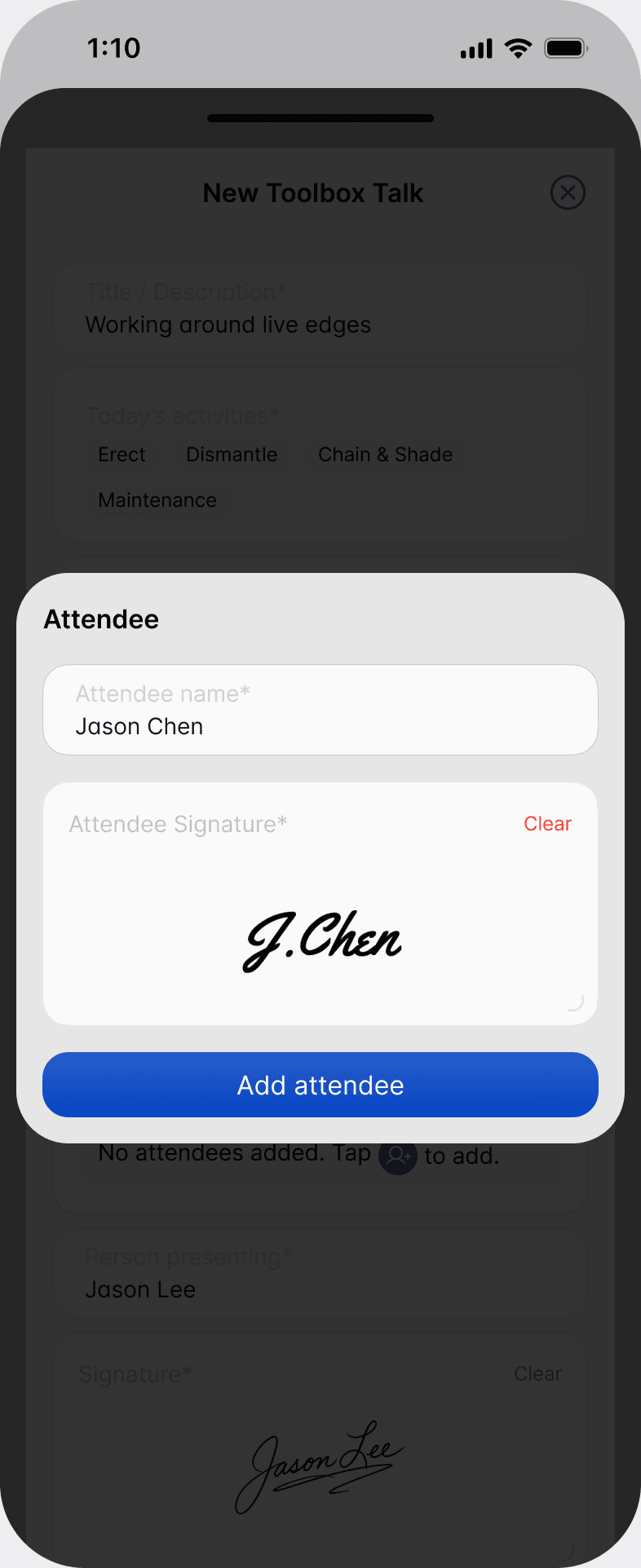
Email toolbox talk to.Finish. Scafflinq generates the PDF and emails it.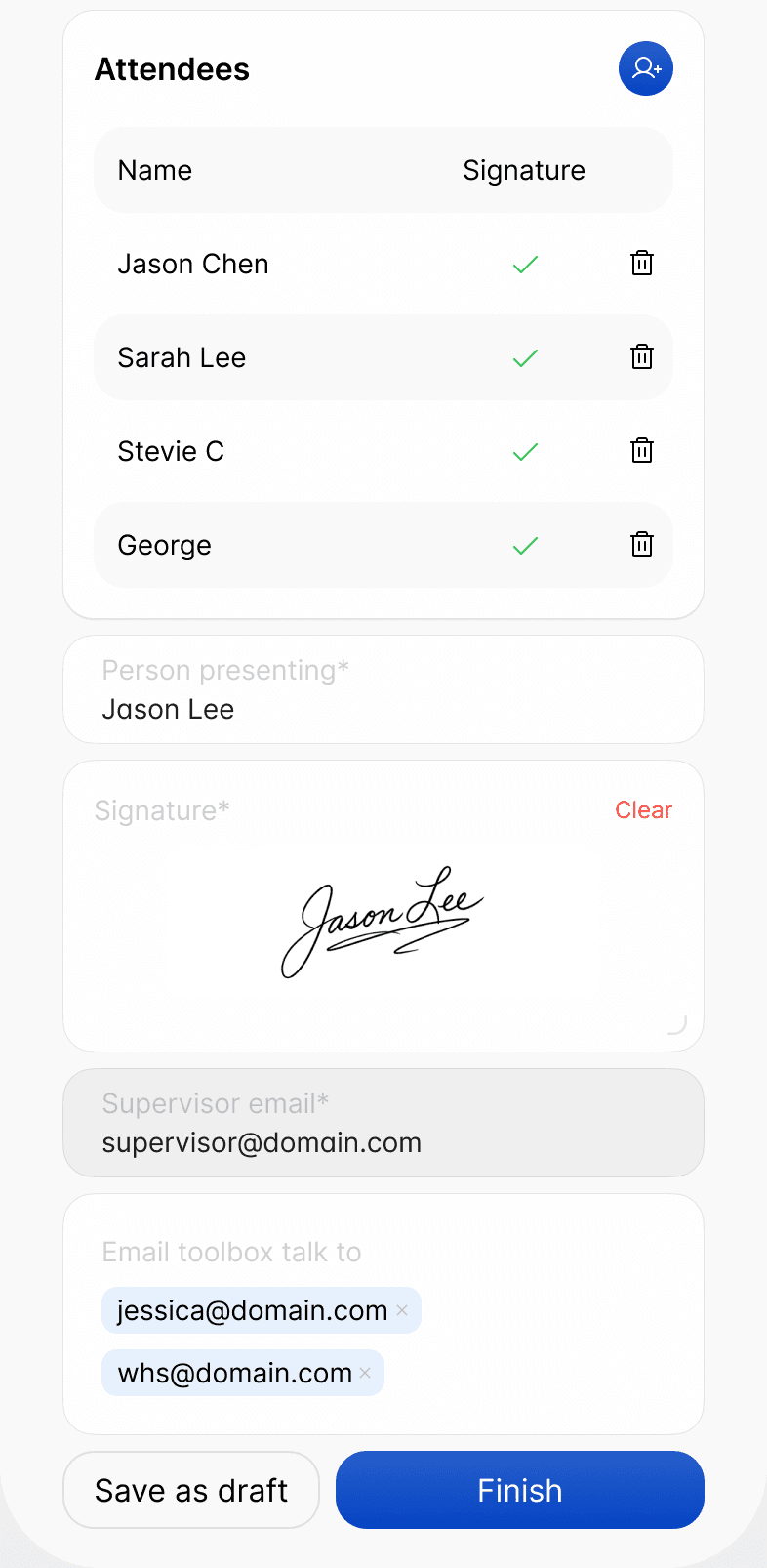
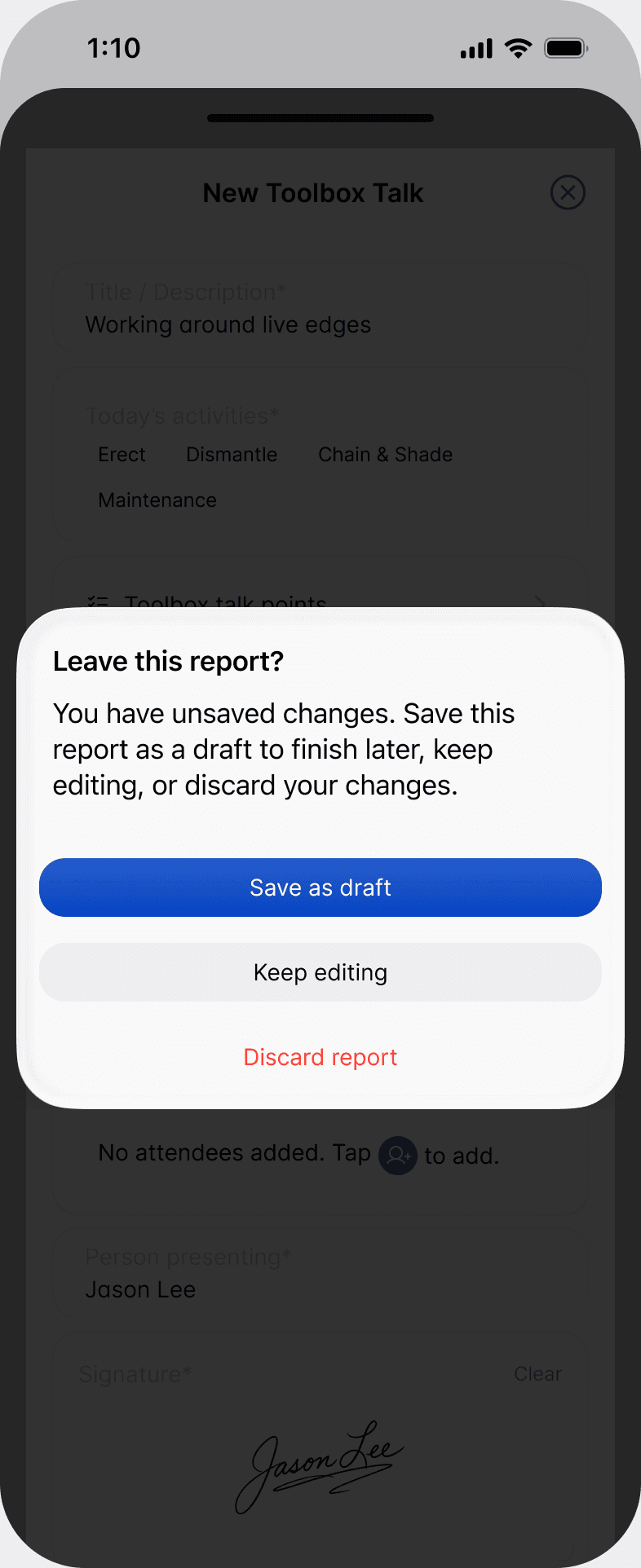
Can't finish it in one go? Tap
Save as draft, or if you close the talk, chooseSave as draftwhen asked. It stays under In Progress until you finish it.
Who receives the PDF
- The project's supervisor
- Anyone added under Email toolbox talk to
- Your default recipients for toolbox talks under Settings > Site Records
Find a toolbox talk in the web portal
Open the project in the web portal and go to the Site records tab. Every toolbox talk submitted on the project is listed there, and you can view, download or resend the PDF.
Still got questions?
Pick whichever suits, we’ll get back to you either way.