How to submit an incident report
You submit incident reports in the mobile app. Choose whether you're reporting an Incident (a near miss, an unsafe act or condition, anything that didn't cause an injury) or an Injury, and Scafflinq asks the questions for that type.
When the report is finished, Scafflinq emails the PDF automatically and keeps it in the project's Site records tab in the web portal.
Before you start
There's nothing extra to set up if the project already has a client email and a supervisor. To add more recipients, set your Incident Report recipients under Settings > Site Records. See how to set site record recipients.
Submit an incident report in the mobile app
Site Records, then choose Incident Reports and tap + to start a new report.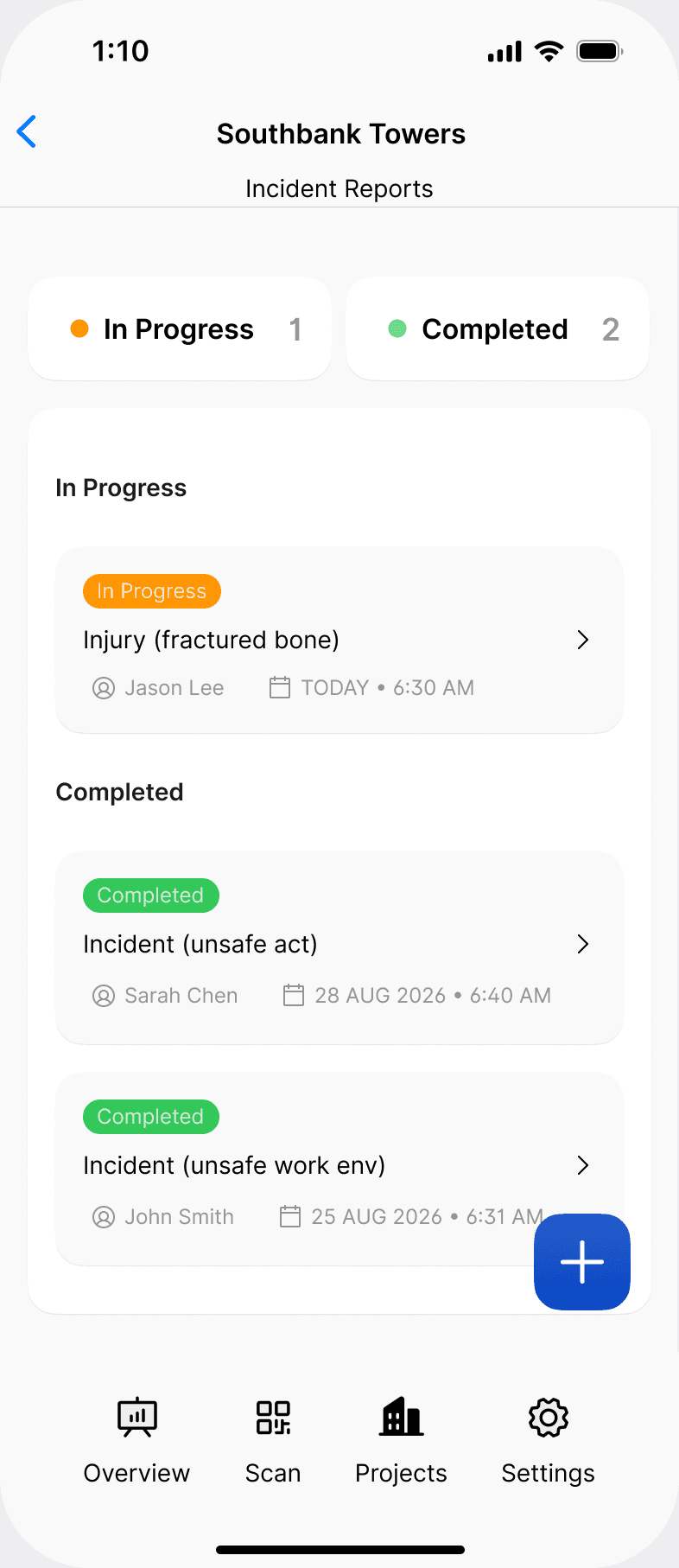
Next.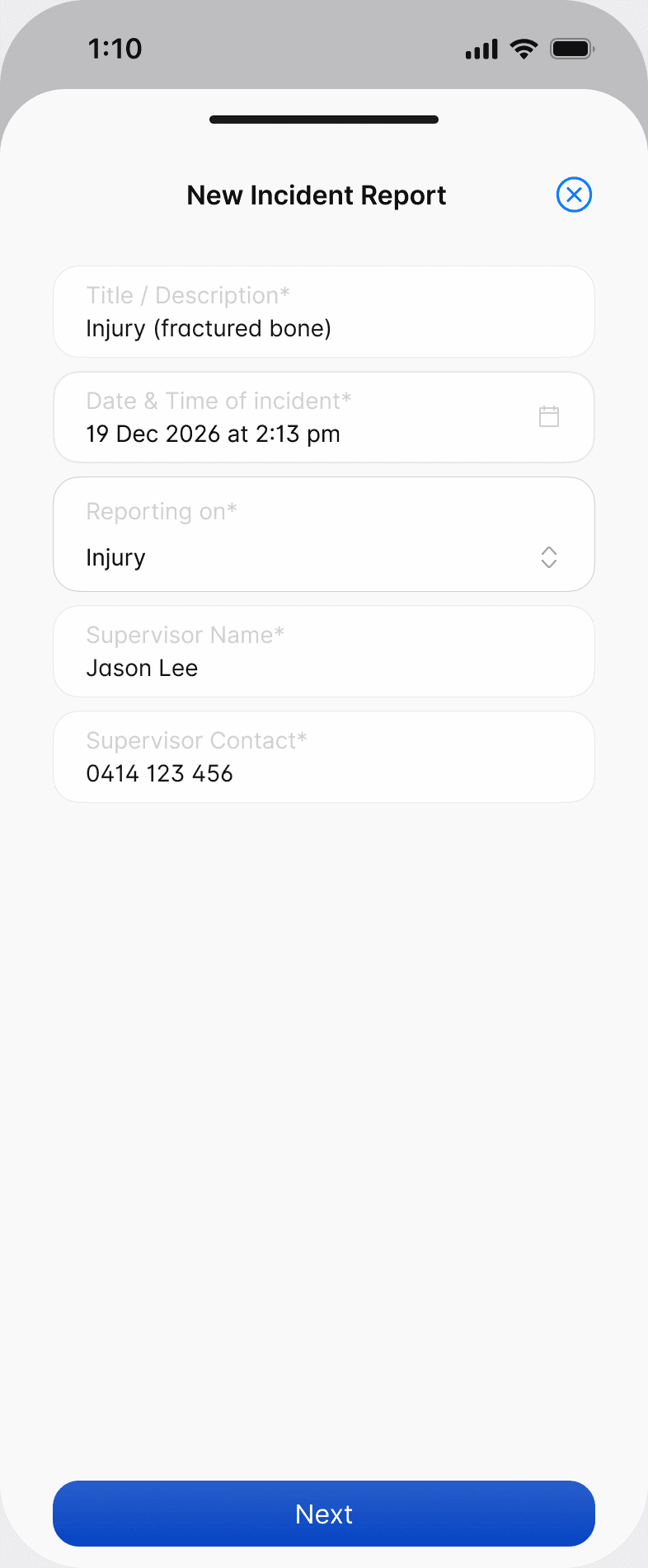
Next after each screen (see below).Submit.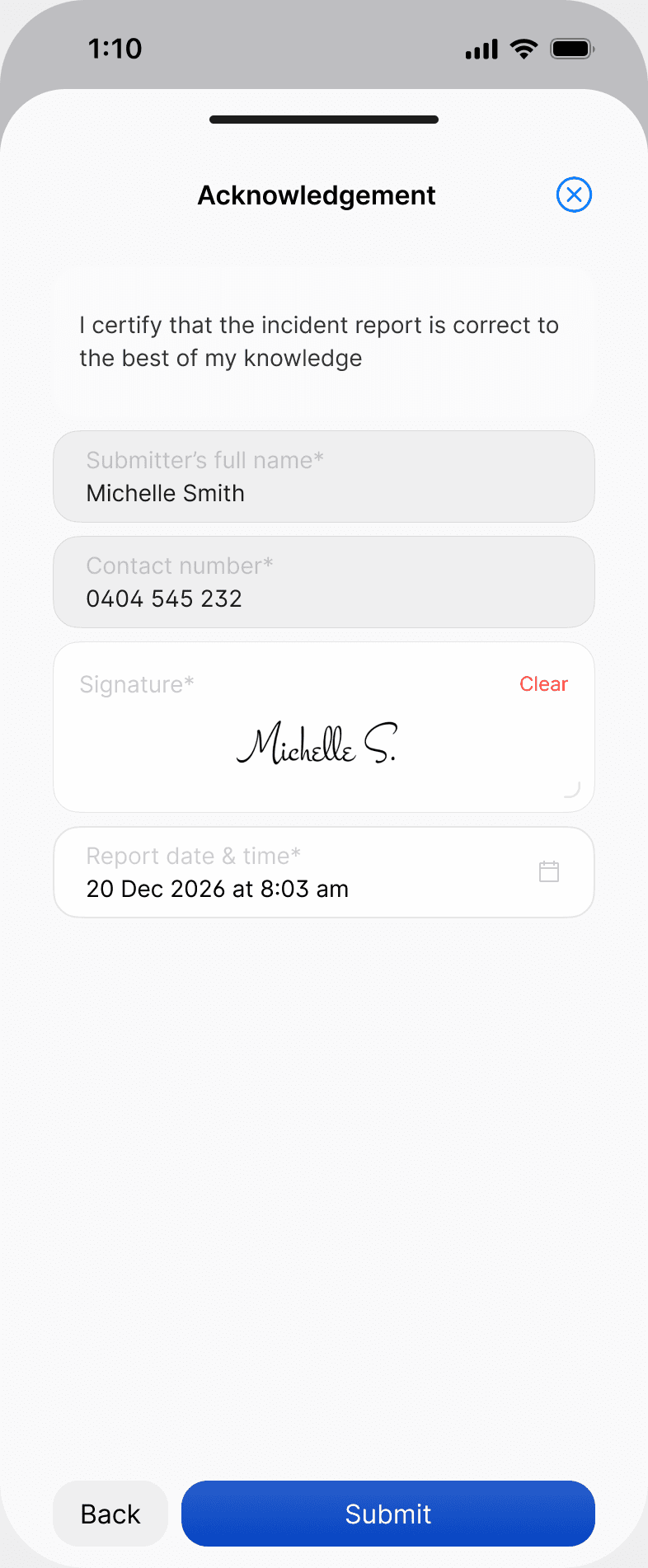
Can't finish it in one go? Save the report as a draft. It stays under In Progress until you submit it.
What each type asks for
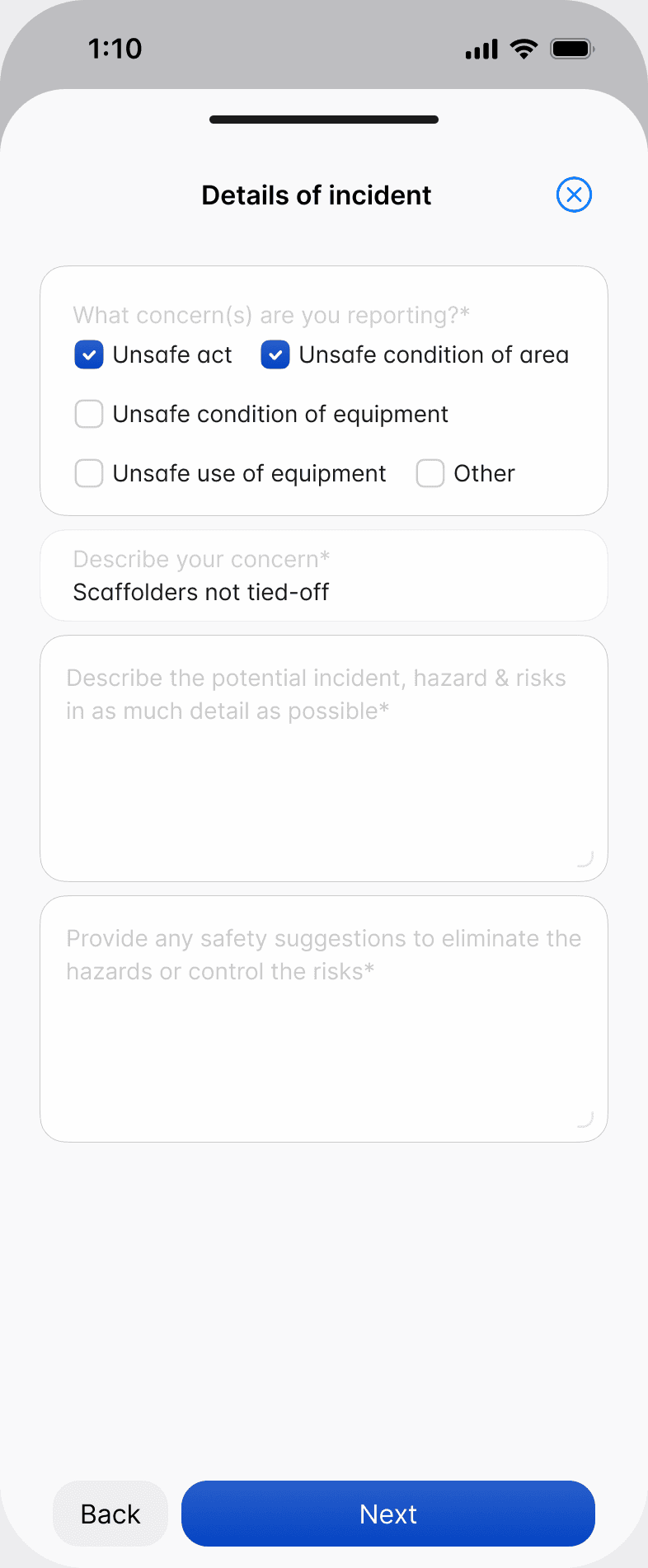
Incident:
- The concern type: unsafe act, unsafe condition of area, unsafe condition of equipment, unsafe use of equipment, or other
- A description of the concern
- What happened, including the potential hazard or risk
- A safety suggestion to eliminate the hazard or control the risk
Injury:
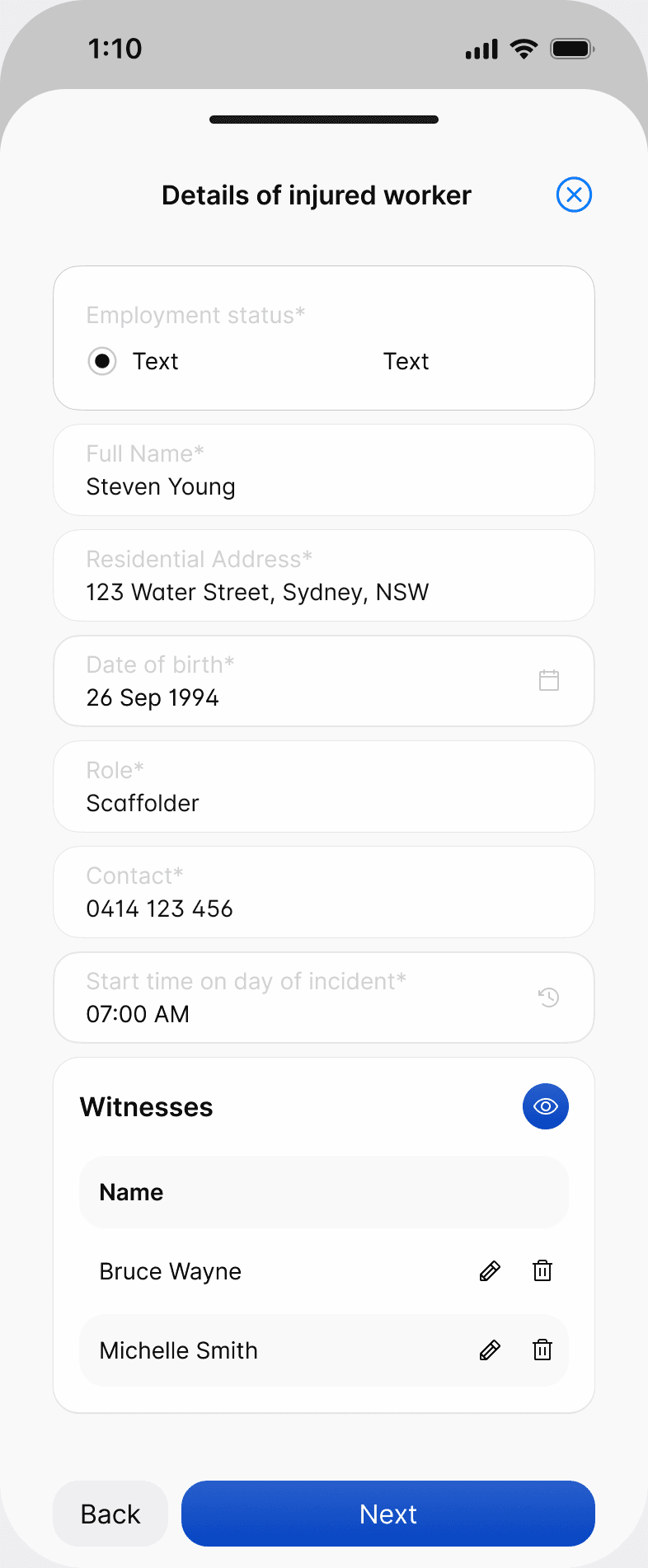
- The injured worker's details: employment status (direct employee or subcontractor), name, address, date of birth, role, contact number and start time on the day
- At least one witness, with their name and contact
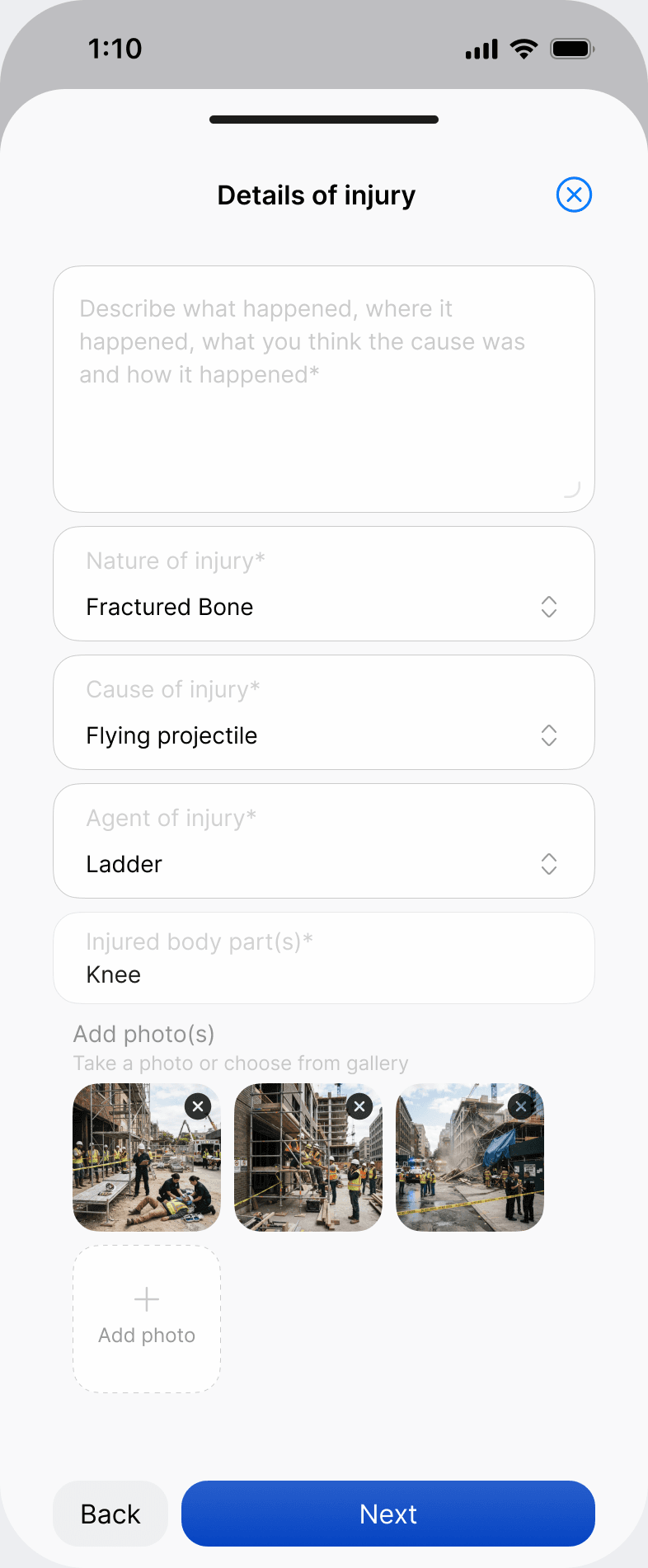
- What happened, the nature, cause and agent of the injury, and the body parts affected, with up to 10 photos
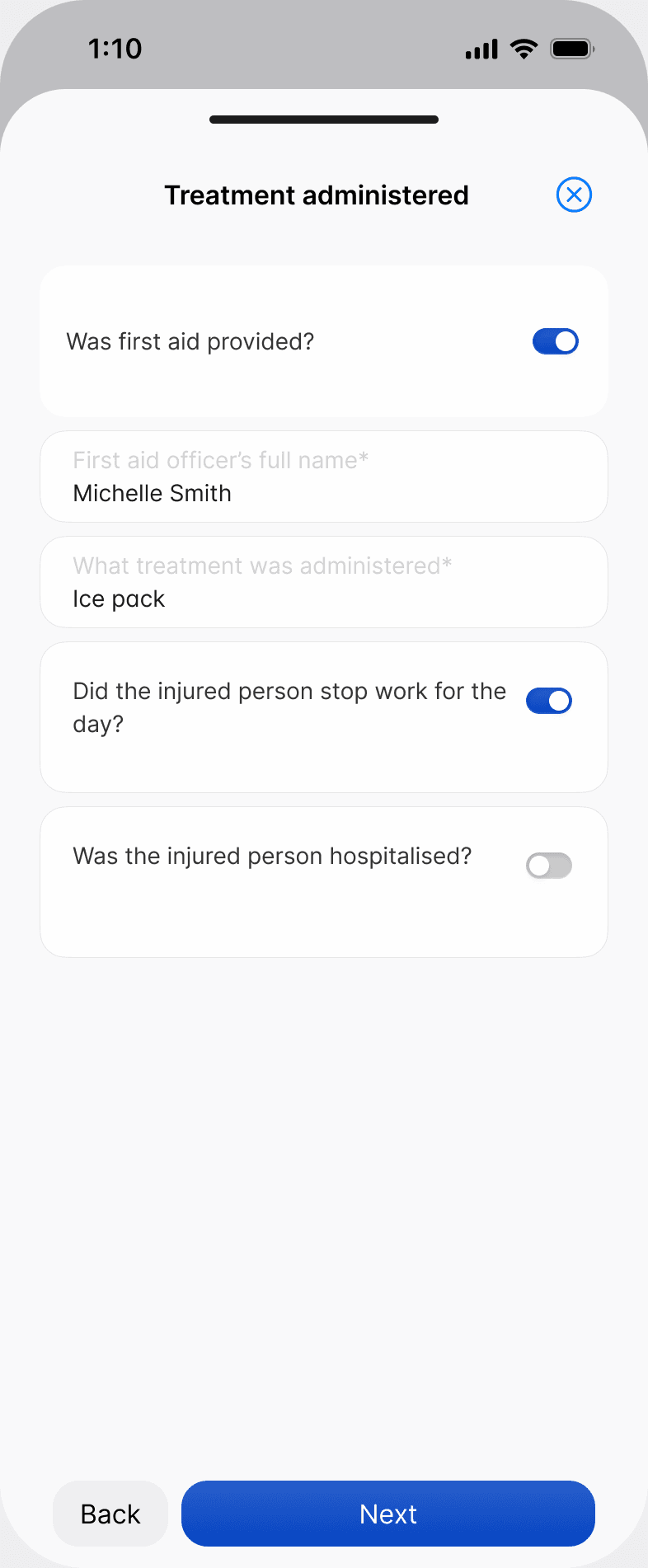
- Treatment: whether first aid was provided, by whom and what treatment, whether the person stopped work for the day, and whether they were hospitalised
Who receives the PDF
- The project's client email
- The project supervisor
- Your default recipients for Incident Reports under Settings > Site Records
Every report is also listed in the project's Site records tab in the web portal, where you can view, download or resend the PDF.
Still got questions?
Pick whichever suits, we’ll get back to you either way.