How to set site record recipients
Every site record is emailed as a PDF the moment it's submitted. Who receives it comes from three places: your default recipients, the project's supervisor, and the project's client email.
Set your default recipients
Default recipients are emailed every time a site record is submitted, on every project.
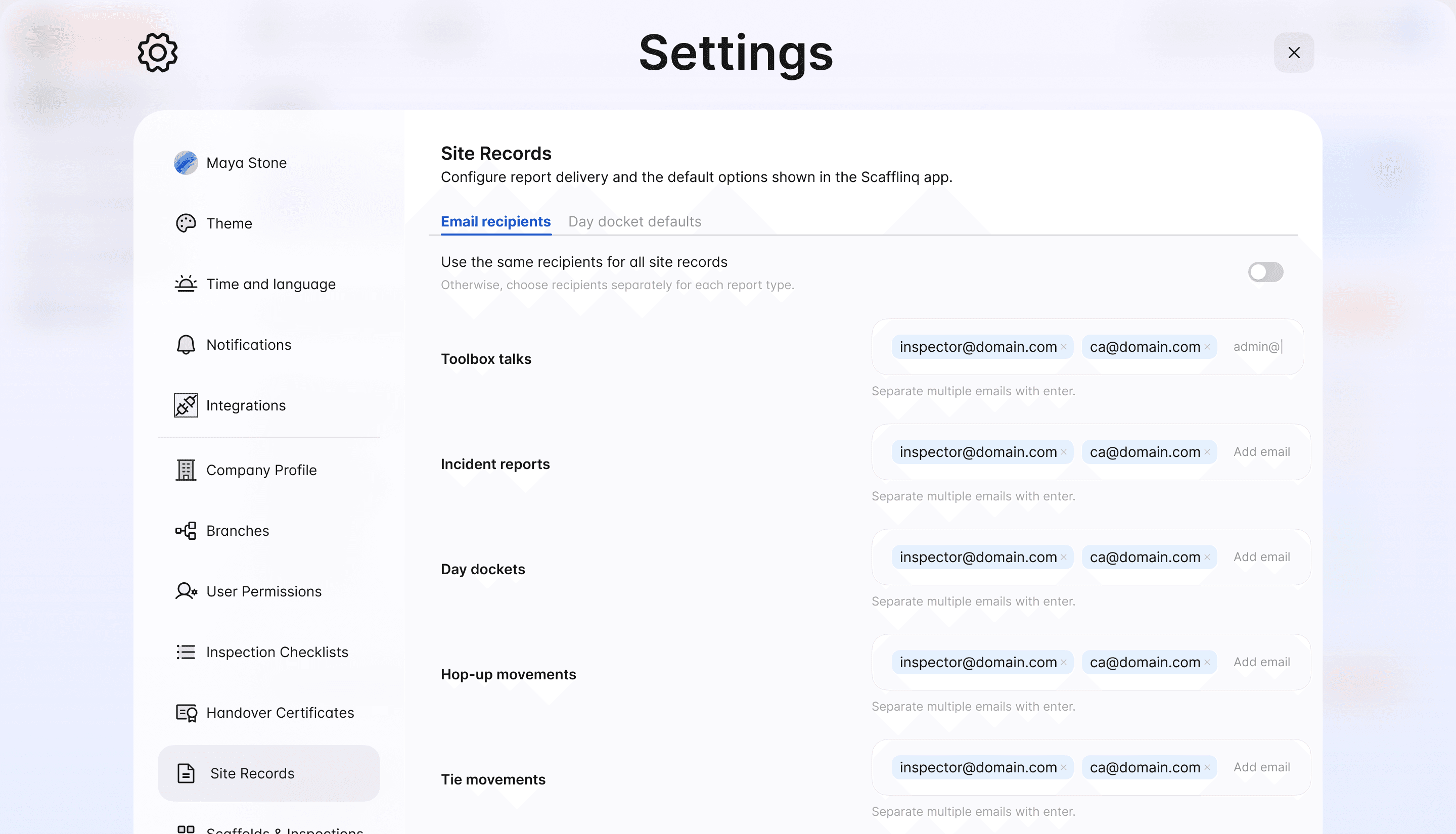
1In the web portal, go to Settings > Site Records and open the Email recipients tab.
2Add the email addresses for each type of site record. Press Enter after each address to add more than one.
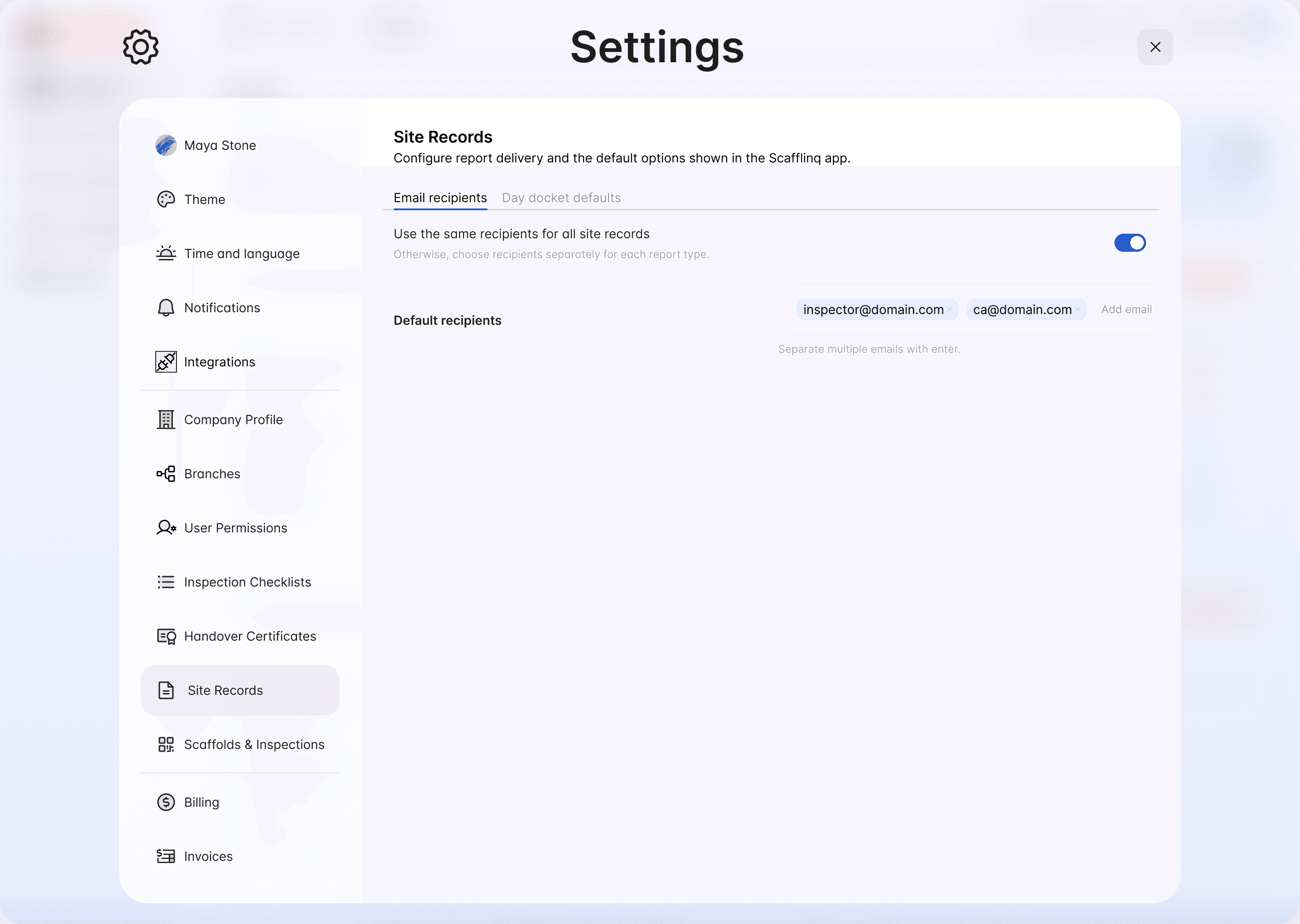
3To send every site record to the same people, turn on Use the same recipients for all site records and add them under Default recipients.
Set the project supervisor and client email
The supervisor and client email are set per project, on the project form in the web portal.
1Open the project and edit it.
2Under Project assignment, choose the project's Supervisor. Their name and email are added to every toolbox talk and incident report on the project.
3Under Customer details, check the client email.
The project supervisor is a user with the Supervisor role. See user roles and permissions.
Who receives each site record
| Site record | Emailed to |
|---|---|
| Day docket | The customer representative who signs it, and your default recipients |
| Hop-up and tie movements | The project's client email, any second client representative added, and your default recipients |
| Toolbox talk | The project supervisor, anyone added under Email toolbox talk to, and your default recipients |
| Incident report | The project's client email, the project supervisor, and your default recipients |
Every site record is also listed in the project's Site records tab in the web portal, where you can open, download or resend the PDF.
Related guides
Still got questions?
Pick whichever suits, we’ll get back to you either way.